_1751731246795-BygAaJJK.png)

Turn a Recorded Webinar into 5 Short Clips with Descript and Canva

 Published by CodeNicely, the product studio founded by Meghal Agrawal and Ujjwal Agrawal in 2017
For: A content marketing manager at a 30-person B2B SaaS company who runs monthly webinars but has no video editor on staff and watches hours of footage go unused after each event
In this guide
By the end of this tutorial you'll have taken one 45-minute webinar recording and turned it into five branded, caption-ready short videos — one 9:16 version for Instagram Reels and YouTube Shorts, and a 16:9 version for LinkedIn — without opening a timeline editor. Budget around 60–90 minutes for your first run, and closer to 30 once the workflow is familiar.
Last verified: October 2026, against the tools' own documentation. AI tools change often — if a step no longer matches, check the sources at the end.
Who this is for, and what you'll get
You run monthly webinars at a small B2B SaaS company. You have the full recording. You don't have a video editor, you don't want to learn Premiere, and you've watched hours of good footage sit unused in a Google Drive folder. This guide is for you.
What you'll walk away with:
- Five short clips (roughly 30–90 seconds each) chosen by AI from the highest-engagement moments of your webinar.
- Each clip exported in vertical 9:16 for Reels and Shorts, plus a 16:9 version for LinkedIn.
- Burned-in captions so the clips work with the sound off on every platform.
- Light branding (logo, colors, lower-third name) applied in Canva.
The thing most tutorials get wrong: they obsess over the editing step. The real bottleneck is clip selection — deciding which 60 seconds out of 2,700 is worth posting. Descript's Create Clips feature solves that in a single step, so you'll pick your five clips before you touch any cuts or captions.
What you need
| Tool | Plan needed | Price (verified) | Why |
|---|---|---|---|
| Descript | Hobbyist or higher | $16/user/month billed annually, or $24/month billed monthly | Create Clips (AI clip selection), transcript-based editing, 9:16 and 1:1 layout presets |
| Canva | Canva Pro | $18/month billed monthly, or $144/year (~$12/month) per Canva's US pricing page | Auto Caption Generator, brand assets, 1080×1920 and 1920×1080 exports |
A couple of plan notes that matter:
- The Descript Free plan is capped at 60 media minutes/month and only five lifetime AI-tool uses, so a 45-minute webinar effectively eats your entire month in one upload. You need at least the Hobbyist plan (10 hours/month of media).
- Descript's upload limit is 1 GB per file on any plan. If your webinar recording is bigger than that, compress or re-export it at a lower bitrate before uploading.
- Canva's video upload limit is also 1 GB per file. Accepted formats: MOV, GIF, MP4, MPEG, MKV, WEBM.
- Canva's Auto Caption Generator is a Pro feature. The Free plan does not include it as an unlimited tool.
Step-by-step
Prep the recording. Export your webinar from Zoom, Riverside, or wherever it lives, as an MP4 under 1 GB. If it's bigger, re-export at 1080p instead of 4K, or run it through a free compressor. Remember: Canva downscales uploaded 4K to 1080p internally anyway, so a 4K source gains you nothing downstream.
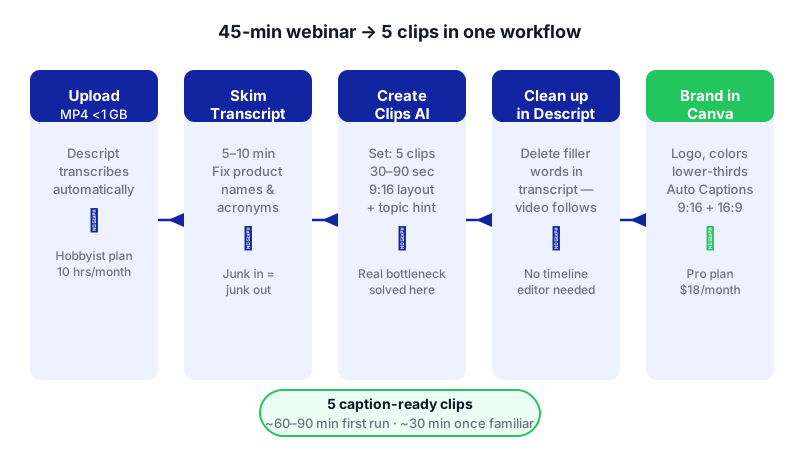
Notice how the real bottleneck — choosing which 60 seconds to keep — is solved in step 3 by Descript's AI, before any editing or branding begins. 
Work through each step in order — the checklist keeps your first run under 90 minutes. Create a new Descript project and upload the file. Drag the MP4 into a new project. Descript will transcribe it automatically. A 45-minute webinar will consume about 45 media minutes against your Hobbyist allowance of 10 hours/month.
Skim the transcript, not the video. This is the single biggest time-saver. Read the transcript for 5–10 minutes to confirm the AI heard your speakers correctly, especially product names and acronyms. Fix any obvious transcription errors — the clip generator uses the transcript to find highlights, so junk in equals junk out.
Open the AI Tools panel and run Create Clips. In the right-hand sidebar, open the AI Tools panel, go to Repurpose, and click Create Clips. Set:
- Number of clips: 5 (the panel allows 1–20).
- Length: somewhere between 30 and 90 seconds. 60 is a safe middle. The feature supports 10 seconds up to 5 minutes.
- Layout: choose the 9:16 portrait preset — this sizes the clips natively for Reels and Shorts with no manual resize later.
- Guiding topic (optional but recommended): type a short phrase that tells Descript what kind of moments you want.
A good guiding topic prompt looks like this:
Find moments where the speaker explains a specific tactic, shares a surprising data point, answers an audience question clearly, or pushes back on a common assumption in B2B sales. Avoid intros, housekeeping, and thank-yous.
Click Submit. If you prefer, you can type the same instruction to Underlord, Descript's AI co-editor, in natural language — it will do the same job from a chat-style prompt.
Review the five clips. Each clip appears as its own independent, editable composition inside a new folder called
Clips from [your project name]. Open each one and watch it end to end. For each, decide: keep as-is, trim the first/last few seconds, or discard and re-run Create Clips with a different guiding topic.Clean up with transcript editing. Inside each clip, you edit the transcript, not a timeline — delete a filler word in the text and the video cuts with it. Common cleanups: remove "um," "so yeah," and false starts; cut a 3-second pause; tighten a rambling intro sentence.
Export each clip from Descript as MP4. Export each of the five clips at 1080p vertical (1080×1920). Save them to a folder on your computer named by clip topic — you'll upload them to Canva next.
Open Canva and create a 1080×1920 project. This is the vertical format for Reels and Shorts. Drag one Descript clip onto the canvas and resize it to fill the frame.
Add branding. Drop in your logo (top corner), a lower-third rectangle with the speaker's name and title, and an outro frame with your website or a CTA. Save these as a Canva template so clips two through five take 2 minutes each.
Generate captions with Canva's Auto Caption Generator. Click the video element on the canvas, select Edit video, click Captions in the top toolbar, then Generate captions. Review the captions for spelling (product names again) and adjust font size and position so they sit above the lower third.
Export as MP4. Canva exports MP4 (H.264/AAC), which uploads cleanly to LinkedIn, Instagram Reels, and YouTube Shorts. The captions will be burned into the video file — which is exactly what you want for Reels, since Instagram doesn't support SRT upload natively.
Repeat for the 16:9 LinkedIn version. Duplicate your Canva project, resize to 1920×1080, reposition the video and captions, and re-export. LinkedIn standard video posts prefer landscape 16:9.
A worked example
Say your October webinar is titled "How Mid-Market SaaS Teams Are Rebuilding Their Outbound Motion." You upload the 42-minute MP4 to Descript. In the Create Clips panel you set 5 clips, 60 seconds each, 9:16 layout, and this guiding topic:
Pull moments where a speaker gives a specific, non-obvious tactic for cold outbound in 2025, cites a concrete number or benchmark, or disagrees with conventional sales advice. Skip intros and audience logistics.
Good output looks like this: five compositions, each 55–65 seconds, each starting on a complete sentence and ending on a clear thought. For example — Clip 2 might be your sales leader guest saying "We stopped measuring reps on dials and started measuring on second meetings. Our pipeline went up and our team stopped quitting." That's a shareable clip. If a clip starts mid-sentence or ends awkwardly, open it and shave the transcript at the edges.
Bring Clip 2 into Canva, apply your template (logo top-left, speaker's name bottom), generate captions, review that "second meetings" didn't get transcribed as "second meanings," export. You now have one post ready for LinkedIn, Reels, and Shorts. Repeat four more times.
Limits and gotchas

- 1 GB upload cap, both tools. A long 4K recording will blow past this. Export your source at 1080p MP4 before uploading anywhere.
- Descript's new usage model. Since September 2025, Descript uses two meters: media minutes (how much footage you upload) and AI credits (for Create Clips, Studio Sound, Underlord). Watch both — a long webinar plus heavy AI use can burn through a monthly allowance. Any tutorial still referencing "transcription hours" is out of date.
- Transcripts need a human pass. AI transcription mishears product names, acronyms, and anything the speaker rushed through. Always skim before generating clips, and always review captions before exporting from Canva.
- Clip selection is directional, not perfect. Create Clips surfaces plausible highlights, but it doesn't understand your pipeline, your ICP, or which customer logo your CEO really wanted name-dropped. Watch all five and be willing to re-run with a different guiding topic.
- Platform duration limits. YouTube Shorts now accepts up to 3 minutes (extended from 60 seconds in September 2024). Instagram Reels, when publishing directly, is capped at 15–90 seconds per clip. Keep your clips at 90 seconds or under to post to all three without reformatting.
- Captions are burned in. Canva's Auto Caption Generator writes captions directly into the exported MP4; it does not output a separate .SRT or .VTT file. That's a feature for Reels (which doesn't accept SRT) and a limitation for YouTube, where you'd normally prefer uploaded captions you can edit later. Keep your Canva project file so you can re-export.
- Data and privacy. You're uploading recorded guest speakers to third-party cloud tools. Check your webinar consent language, and don't upload anything with confidential customer data in the audio.
When not to use AI for this, and honest alternatives
Skip this workflow when:
- Your webinar is 80% slides, 20% talking head. AI clip tools struggle with slide-heavy footage. You'll get better results asking a freelance editor on Upwork to cut five clips for a flat fee ($100–$300).
- You need the clip to tell a story that spans the full webinar. Create Clips picks self-contained moments. A narrative arc stitched from four different sections of the talk is still a human job.
- Legal or compliance review is strict. If every public clip needs sign-off from legal plus the guest speaker, the AI speed advantage disappears. The bottleneck isn't editing anymore; it's approvals.
Honest alternatives among AI tools for video content creation: Opus Clip and Vizard are purpose-built for this exact job and may surface clips you prefer. The Descript + Canva pairing wins when you also want transcript-based editing control and reusable branded templates in one stack you already own.
Frequently Asked Questions
Can I do this entirely in Descript without Canva?
Partly. Descript can produce vertical clips with captions and basic layouts directly. Canva comes in when you want polished branding — logo placement, brand colors, lower thirds, outro frames — applied as a reusable template. If your brand standards are light, you can stay inside Descript and skip Canva entirely.
How much does the full stack cost per month?
Descript Hobbyist is $16/user/month billed annually (or $24 monthly), and Canva Pro is $18/month billed monthly or $144/year. So roughly $28–$42/month depending on billing cadence. Check both vendors' current pricing pages before you commit.
What's a good ChatGPT prompt to pair with this workflow?
Use ChatGPT to write the social post copy that goes around each clip. Paste the clip's transcript and try: "Write a LinkedIn post of 80–120 words that teases this 60-second clip. Open with a specific claim or number from the transcript. End with a question. No hashtags in the body." It's one of the more reliable ChatGPT prompts for video content creation because the input (the transcript) is concrete.
What is the best AI tool for video content creation if I only pick one?
There's no single best one — it depends on the job. For turning long-form into short clips with transcript-based editing, Descript is a strong choice because Create Clips and Underlord handle both selection and editing in one place. For purely branded graphics and captions, Canva is hard to beat.
How often will the AI pick a bad clip?
Expect one or two of the five to need a different guiding topic or a manual replacement. That's normal. Build in 15 minutes of review time per batch and you'll stay on schedule.
When this workflow outgrows off-the-shelf tools — for example, if you want clips auto-posted to a CMS or routed by topic to different sales reps — a custom build is an option, and it's the kind of thing CodeNicely does.
Sources & further reading
- Create Clips from your content — Descript Help Center
- Descript Pricing — descript.com/pricing
- Underlord — descript.com/underlord
- Get started with Descript — Descript Help Center
- Descript Pricing 2026 (Plans, Free Plan Limits, Yearly Cost) — Castmagic
- Descript Review 2026: Pricing, Accuracy — Sonix
- Auto Caption Generator — Canva (official feature page)
- Check file upload formats and requirements — Canva Help Center
- I can't download my design or video — Canva Help Center
- Sharing on social media or apps limitations — Canva Help Centre
Get one practical guide a week
Costs, AI tools, partner selection — written for people who make the decision. No spam, unsubscribe anytime.
Thanks — you're on the list. One practical guide a week, nothing else.
That didn't work — please check the email address and try again.
Building something in Video & Content?
CodeNicely partners with founders and tech teams to ship AI-native products that move metrics. Tell us about the problem you're solving.
Talk to our team Book a 30-min call