Turn a Product Page into a Talking-Head Promo Video with ChatGPT and Canva

 Published by CodeNicely, the product studio founded by Meghal Agrawal and Ujjwal Agrawal in 2017
For: A solo marketing manager at a 15-person e-commerce brand who needs to publish product promo videos weekly but has no video team, no on-camera talent, and no budget for a production agency
In this guide
By the end of this tutorial you will have a 60–90 second talking-head promo video, built from an existing product page URL, with an AI-generated script, an AI avatar presenter, on-screen text and your brand colours — ready to post to Instagram, TikTok or your website. Budget about 45–75 minutes the first time, and roughly 20 minutes once you have a template.
Last verified: November 2026, against the tools' own documentation. AI tools change often — if a step no longer matches, check the sources at the end.
Who this is for, and what you'll get
You are the only marketer at a small e-commerce brand. You already have good product pages. You do not have a camera, a presenter, a video editor, or the budget to hire any of them. You need to ship a promo video every week without it eating your Monday.
This workflow uses ChatGPT to read your product page and write a tight script, and Canva to assemble the video — with a talking-head AI avatar supplied by a third-party app inside Canva (either D-ID AI Avatars or HeyGen). You will finish with an MP4 you can upload anywhere.
What you need
There are three accounts in play, not two. This is the single biggest thing most tutorials get wrong: Canva does not have a built-in talking-head avatar. The avatar is delivered by a third-party app from the Canva Apps Marketplace, which has its own separate account and pricing on top of Canva.
| Tool | What it does here | Plan you need | Cost |
|---|---|---|---|
| ChatGPT | Reads your product page URL and writes the script | Free is enough — ChatGPT Search works on Free, Go, Plus, Pro, Business, Enterprise and Edu | Free |
| Canva | Slides, on-screen text, branded visuals, final MP4 export | Free works if you only use free assets; Pro unlocks Magic Studio credits, 500 MB uploads and premium elements | Canva Pro is roughly $15–$18/month, or about $144/year (~$12/month). Check the current plan on canva.com/pricing. |
| D-ID AI Avatars (Canva app) | Generates the talking-head avatar clip from your script | Trial for testing; Lite for ongoing use; Pro if you need commercial rights; Advanced if you need the watermark gone | Trial: 14 days, watermarked. Lite: ~$5.90/mo (~$4.70/mo annual), watermarked. Pro: ~$29/mo, commercial rights, smaller "AI" watermark remains. Advanced: $196/mo ($108/mo annual) to remove the watermark and replace it with your logo. |
| HeyGen (Canva app, alternative) | Same job as D-ID — named on Canva's own script-to-video feature page | Separate HeyGen account | Check current pricing on heygen.com |
The D-ID app itself is listed as free to install with any Canva plan. The cost sits on the D-ID side. If you plan to post videos commercially (which, as an e-commerce brand, you do), you need at minimum D-ID's Pro plan for commercial licensing. If a visible watermark is a dealbreaker, that is the Advanced plan.
Step-by-step
Pick one product page as your source. Copy its public URL. ChatGPT Search can read publicly available pages but cannot see anything behind a login or paywall, so make sure the page opens in an incognito window first.
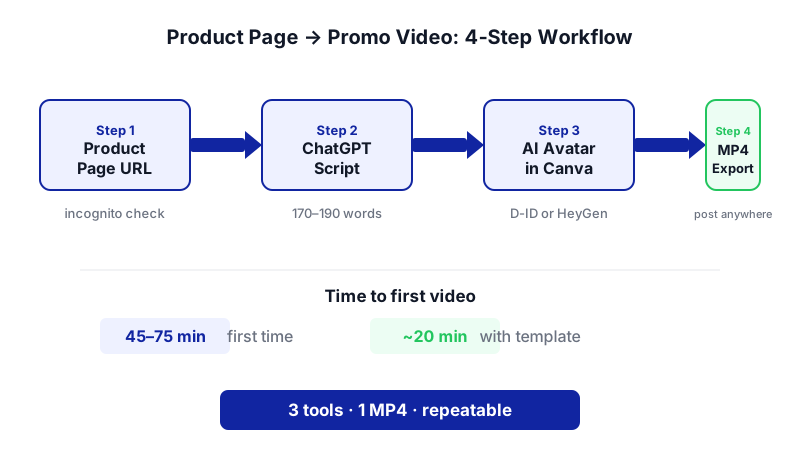
Each step lights up in order so you can see exactly where the three tools hand off to each other — and how the 45-minute first run shrinks to 20 minutes once you have a template. Open ChatGPT and ask it to read the page. Start a new chat and make sure web search is active. Paste this prompt, swapping in your URL and brand facts:
You are a short-form video scriptwriter for a small e-commerce brand. Read this product page: [URL]. Summarise in 5 bullets: (1) what the product is, (2) the main problem it solves, (3) the top 3 benefits with any specific numbers or materials mentioned, (4) who it is for, (5) the price and any current offer. Only use facts that appear on the page. If something is not stated, say "not on page".
Why: before you write the script, you want to see that ChatGPT actually fetched the right page. Check the bullets against the page. If it hallucinated a feature, the script will too.
Ask for the script. Once the summary looks right, continue in the same chat:
Now write a 70-second talking-head promo script (about 170–190 words) for Instagram and TikTok, based only on the bullets above. Tone: friendly, direct, no hype words like "revolutionary" or "game-changer". Structure: a 1-sentence hook that names the problem, 3 short benefit beats, one line of social proof only if the page provides it (otherwise skip), and a clear call to action to visit the product page. Write it as one spoken paragraph with no stage directions. Then, below the script, list 5 on-screen text captions (max 6 words each) that match the key beats.
Why: 170–190 words lands close to 60–90 seconds at a natural pace. The captions are what you will drop onto your Canva slides.
Tighten the script by reading it out loud. Time yourself. If it runs over 90 seconds, paste it back and say "cut this to 65 seconds, keep the hook and CTA verbatim". AI avatars sound more natural with shorter sentences, so break anything longer than 15 words into two.
Open Canva and start a new video. Create a new design at the aspect ratio you need — 1080×1920 for Instagram Reels and TikTok, or 1920×1080 for a product page embed. Set up your brand colours and fonts in the design before you add the avatar; that way every slide you add inherits them.
Install the AI avatar app inside Canva. From the Canva editor, open the Apps panel and search for D-ID AI Avatars or HeyGen. Both are third-party apps in the Canva Apps Marketplace. Install one, then sign in or create an account on that app's side. This is a separate login from Canva.
Generate the talking-head clip. Inside the app panel, pick an avatar that fits your brand (gender, age, style), pick a voice, and paste the script from ChatGPT. Canva's script-to-video tooling supports over 40 languages and lets you either pick an AI voice or upload your own audio. Generate the clip. On D-ID, the Trial and Lite tiers will stamp a full-screen watermark on the result; Pro reduces it to a smaller "AI" mark; Advanced removes it. Decide this before you spend time editing around a watermark you cannot keep.
Drop the avatar clip onto your first slide. Once the app finishes rendering, the clip appears in your Canva editor. Place it on the slide. If you are in 9:16, position the avatar to one side so you have room for captions and product imagery.
Add product visuals. Pull product photos from the page (or upload your own) and place them on a second and third slide so the video cuts between the talking head and the product. On Canva Free, each uploaded video file is capped at 100 MB; Canva Pro raises that to 500 MB. Stills are not a problem on either tier.
Add the on-screen captions. Use the 5 captions ChatGPT gave you. Place one per beat, timed to the matching moment in the audio. Use your brand font and one accent colour. Keep each caption on screen for at least 1.5 seconds so viewers can read it.
Add a CTA end card. One slide: product name, price (if you quoted it in the script), and a short "Shop at [yourbrand.com]" line. Hold this for 2–3 seconds.
Export. Open Canva's share options and export as MP4 (H.264). Canva exports MP4 up to 1920×1080; there is no 4K option even on Pro. If you are on Canva Free, double-check you have not used any premium (crown-marked) elements, or the export will carry a Canva watermark. Avoid GIF export — it drops the audio.
Save the Canva file as a template. Next week, you only need to swap the avatar clip, product images, and captions. The whole job drops to around 20 minutes.
A worked example
Say you sell a $39 merino wool travel sock. Your product page URL is yourbrand.com/products/merino-travel-sock.
ChatGPT summary (what good looks like):
- What it is: a mid-calf merino wool sock designed for long-haul travel
- Problem: regular socks get sweaty and smelly on 10+ hour flights
- Benefits: 80% merino blend, odour-resistant for 3 days, cushioned heel, machine washable
- Who for: frequent flyers and digital nomads
- Price: $39, free shipping over $50
Script ChatGPT returns (abridged):
Your socks after a 12-hour flight? Not pretty. These merino travel socks are built for the long haul. The 80% merino blend stays odour-resistant for three days straight. A cushioned heel means your feet don't ache by landing. And yes — you can just throw them in the wash. Thirty-nine dollars, free shipping over fifty. Grab a pair at yourbrand.com before your next trip.
Captions ChatGPT returns: "12-hour flight proof" · "80% merino blend" · "Odour-resistant 3 days" · "Machine washable" · "$39 · Free shipping over $50".
You generate the avatar clip, cut to a product photo on "80% merino blend", cut to a lifestyle shot on "12-hour flight proof", and finish on a CTA card. Total time once you have the template: around 20 minutes.
Limits and gotchas
- Watermarks on D-ID. Trial and Lite plans put a full-screen watermark on every video. The smaller "AI" mark remains until the Advanced plan ($196/month monthly, $108/month annual). Don't commit to a workflow until you have seen the watermark on your tier.
- Commercial rights on D-ID. Commercial licensing starts at D-ID's Pro plan (~$29/month). Posting avatar videos for your business on a Trial or Lite plan may breach their terms.
- ChatGPT cannot read every page. Paywalled, password-protected or heavily JavaScript-rendered pages may not load. If the bullet summary looks generic, copy the page text into the chat manually.
- Fact-check every number. Prices, specs, materials, delivery times — read the final script against the live page before you generate the avatar. AI will sometimes smooth a "from $39" into a flat "$39".
- Canva Free export rules. You can export watermark-free MP4s on Free as long as you avoid premium elements. One stray paid stock clip will stamp the whole video.
- Upload size. Canva Free caps video uploads at 100 MB per file; Pro at 500 MB. Compress long B-roll before uploading.
- No 4K. Canva tops out at 1920×1080 even on Pro. Fine for social; not for broadcast.
- Avatar realism. AI avatars still read as AI to most viewers. That is fine for a product explainer; it is not fine if you want the video to feel like a founder-to-customer message.
- Data. You are sending your product copy to ChatGPT and your script to a third-party avatar service. Don't paste unreleased product info, unannounced pricing, or anything under NDA.
When not to use AI for this, and honest alternatives
Skip this workflow when the video needs to carry real personality — a founder story, a customer testimonial, a crisis apology. Viewers forgive a plain phone video from a real human faster than they forgive a polished AI avatar pretending to be one.
Honest alternatives for those cases: film a 60-second clip on your phone with natural light, use Canva to add captions and your brand end card, and skip the avatar entirely. Or commission one longer brand video per quarter from a freelancer and use this AI workflow for the weekly product-level content around it.
Frequently Asked Questions
Do I really need a paid Canva plan?
Not strictly. Canva Free lets you export watermark-free MP4s up to 1920×1080 and 30 minutes long, as long as you only use free elements. You will want Pro once you need Magic Studio credits, 500 MB uploads, or premium stock. The avatar app is separate from Canva's pricing either way.
Can I do the whole thing on free tiers?
Technically yes, for testing. ChatGPT Free covers the script. Canva Free covers the editor. D-ID's 14-day Trial covers the avatar. But every Trial and Lite D-ID video carries a full-screen watermark, and commercial use starts at D-ID's Pro plan. For actual publishing to your brand channels, budget for at least D-ID Pro.
HeyGen or D-ID — which should I pick?
Both are listed as third-party apps inside Canva, and Canva's own script-to-video feature page names HeyGen specifically. Install one, generate a 15-second test with your script, and judge the avatar and voice quality against your brand. Pricing and watermark policies differ, so check each on the vendor's own pricing page before you commit.
How do I keep the videos on-brand week to week?
Build one Canva file as a template: brand colours, fonts, intro slide, CTA end card, caption style. Each week, swap only the avatar clip, product photos and captions. Lock the same avatar and voice on the D-ID or HeyGen side so the "presenter" stays consistent across videos.
What if ChatGPT gets a product detail wrong?
Assume it will, at least occasionally. Always read ChatGPT's 5-bullet summary against the live product page before you ask for the script, and read the final script once more before you paste it into the avatar app. Fixing a wrong price after the video is rendered costs you a re-render.
If this weekly workflow starts to feel like a ceiling — you want a branded avatar that is actually you, a pipeline that pulls straight from your product catalogue, or videos auto-generated on every new SKU — that is the point where a custom build makes sense, and it's the kind of thing we do at CodeNicely.
Sources & further reading
- Searching the web with ChatGPT — OpenAI Help Centre
- Free Online AI Script to Video Generator — Canva
- AI Video Generator: Text to Video AI Tool — Canva
- D-ID AI Avatars — Canva Apps Marketplace
- DeepReel AI Videos — Canva Apps Marketplace
- D-ID Pricing (2026): Plans, Credits and What You'll Actually Pay — Creatify
- D-ID Review 2026: Features, Pricing & Top Alternatives — gaga.art
- AI Avatar Pricing 2026: HeyGen vs Synthesia vs D-ID — Argil
- Canva Pricing 2026: Pro $18/mo or $144/yr — FelloAI
- Free CapCut Alternative — Do Canva videos have watermarks? — Canva
Get one practical guide a week
Costs, AI tools, partner selection — written for people who make the decision. No spam, unsubscribe anytime.
Thanks — you're on the list. One practical guide a week, nothing else.
That didn't work — please check the email address and try again.
Building something in Video & Content?
CodeNicely partners with founders and tech teams to ship AI-native products that move metrics. Tell us about the problem you're solving.
Talk to our team Book a 30-min call