_1751731246795-BygAaJJK.png)

Plan Your Entire Work Week in 15 Minutes with ChatGPT

 Published by CodeNicely, the product studio founded by Meghal Agrawal and Ujjwal Agrawal in 2017
For: An operations manager at a 30-person SaaS company who juggles seven ongoing projects, back-to-back meetings, and a running Slack thread of ad-hoc requests — and regularly hits Friday having missed her three most important tasks
In this guide
By the end of this tutorial you will have a prioritized, time-blocked plan for your work week, built from your actual meeting load and task list, in about 15 minutes every Monday morning. You will do the thinking with ChatGPT and the blocking in Google Calendar.
Last verified: October 2026, against the tools' own documentation. AI tools change often — if a step no longer matches, check the sources at the end.
Who this is for, and what you'll get
This is written for someone like an operations manager at a 30-person SaaS company: seven projects in the air, meetings most of the day, Slack pinging constantly, and a nagging feeling that the three things that actually matter keep sliding to next week.
What you will walk away with:
- A ranked list of your week's priorities, forced into an order rather than a wish list.
- A time-blocked schedule that respects your existing meetings and your real energy pattern.
- A reusable prompt you can run every Monday in under 15 minutes.
One thing to be upfront about: most tutorials tell you to ask ChatGPT to "make me a schedule" and call it done. That almost never survives Tuesday. The unlock is feeding ChatGPT your actual constraints — fixed meetings, your energy peaks, and a prompt that forces it to stack-rank — so the plan is realistic enough that you'll actually follow it.
What you need
| Tool | Plan needed | Cost | Why |
|---|---|---|---|
| ChatGPT | Free works for the planning prompt. Plus is required if you want ChatGPT to create calendar events for you. | Plus is $20/month. Free tier is $0. | Does the prioritization and time-blocking in plain language. |
| Google Calendar | Any Google account (free personal account is fine). | Free | Where the time blocks actually live and remind you. |
A note on the ChatGPT–Google Calendar connector: on Plus, Pro, Business, and Enterprise plans, ChatGPT can create new Google Calendar events for you one at a time, with your confirmation. Rescheduling and deleting existing events through ChatGPT isn't supported today, so you'll still touch Google Calendar directly for edits. The free ChatGPT tier doesn't support connected apps at all — you can still do the whole workflow, you'll just copy-paste the blocks into Calendar yourself.
Step-by-step: 15 minutes, every Monday
-
Open Google Calendar and look at the week ahead. You need to know what's already locked in before ChatGPT can plan around it. Note every fixed meeting, external commitment, and any recurring block that can't move. Keep this tab open — you'll come back to it.
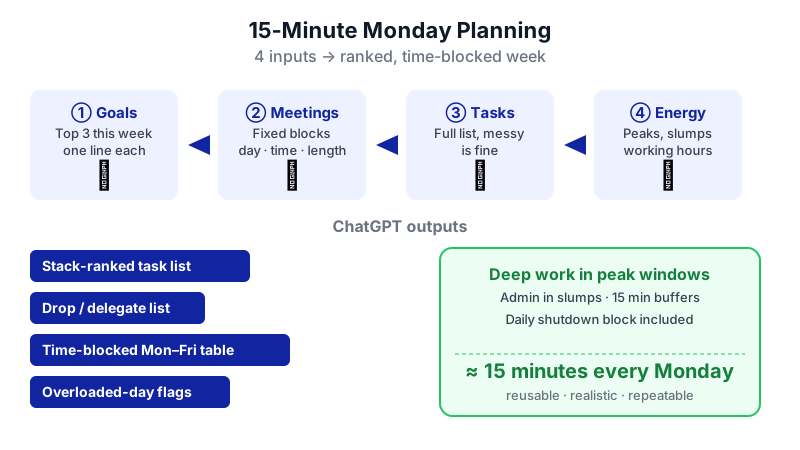
Watch the four inputs appear one by one, then see exactly what ChatGPT hands back — a ranked task list, a cut list, a time-blocked Mon–Fri table, and overloaded-day flags. 
Before ChatGPT can plan around your week, you need your fixed meetings and task list in one place. -
Dump everything on your plate into a single list. Open a plain text file or a note. Pull from your Slack flags, email stars, project tool, and the sticky notes on your monitor. Don't filter yet. Include ad-hoc requests, overdue items, and the "I keep meaning to" items. Messy is fine — ChatGPT will handle the mess.
-
Write down your top three goals for the week in one line each. This is the forcing function. If a task doesn't ladder up to one of these three, it probably shouldn't own a prime-time block.
-
Note your energy pattern and working hours. One sentence is enough: "Sharpest 9–11am, slump 2–3:30pm, decent again 3:30–5pm. Working hours 8:30–6, lunch around 12:30." ChatGPT will use this to put deep work in your peak windows.
-
Open ChatGPT and paste in the master prompt below. Fill in the four sections with what you gathered. Keep it in one message so ChatGPT holds all the context at once.
You are my weekly planning partner. I'm an operations manager with back-to-back meetings and a tendency to miss my most important work. I'm going to give you four inputs. Do the following, in order:
1. Stack-rank every task I list from 1 to N. No ties. Use my top three goals as the primary ranking criterion, then urgency, then effort. Briefly explain the top 5 rankings.
2. Tell me which tasks I should drop, delegate, or defer to next week, and why. Be ruthless — assume I will not get to more than 60% of this list.
3. Build a time-blocked schedule for Monday–Friday that works around my fixed meetings. Put deep-focus tasks in my peak energy windows. Put admin, email, and shallow tasks in my low-energy windows. Include a 15-minute buffer between meetings where possible and a daily 20-minute end-of-day shutdown block.
4. Flag any day that looks unrealistic and suggest exactly what to cut.
INPUTS:
A) Top 3 goals this week: [paste]
B) Fixed meetings and commitments (day, time, duration): [paste]
C) Full task list (unordered, messy is fine): [paste]
D) Energy pattern and working hours: [paste]
Output the schedule as a table with columns: Day, Start, End, Block, Linked Goal.
-
Read the output critically and push back. ChatGPT will produce a ranked list, a cut list, and a table. Spot-check: Did it put your hardest thinking work in your sharp window? Did it under- or over-allocate? If something is off, reply in plain language — "Tuesday morning is too packed, move the roadmap review to Wednesday afternoon and give me a 30-minute buffer before the leadership sync." Iterate 2–3 times until the plan feels doable.
-
Get the blocks into Google Calendar. Two paths:
- Manual (works on any plan, takes about 5 minutes): In Google Calendar on desktop, click an empty time slot or click + Create, enter a title that matches the block (e.g., "Deep work: Q3 pricing deck"), set the start and end times, mark the status as Busy, and save. Repeat for each block. You can drag-and-drop to adjust afterward.
- Via the ChatGPT connector (ChatGPT Plus or above): In ChatGPT, go to Settings and open the Apps or Connectors area, connect your Google account, and authorize. Then ask ChatGPT to create each block as a calendar event — it will confirm with you one event at a time before writing it. Note that on Business or Enterprise, a workspace admin may need to enable write actions first.
If you have multiple Google accounts (work and personal), the connector supports both simultaneously on paid plans — make sure you authorize the correct one.
-
Protect the deep-work blocks. If you're on a personal Google account, create the blocks as regular Events with status set to Busy — that's your protection. If your company is on Google Workspace Business Standard/Plus or Enterprise Standard/Plus, you can use the Focus Time event type instead, which automatically sets Do Not Disturb in Google Chat and can decline meetings during the block. Focus Time isn't available on free personal accounts.
-
Save the prompt somewhere you'll find it next Monday. Pin it in a note, bookmark the ChatGPT conversation, or paste it into your "Monday morning" calendar event. The whole point is that week two takes 10 minutes instead of 15.
A worked example
Here's what the inputs might look like for a real Monday morning.
Top 3 goals:
- Finalize Q3 pricing deck for Thursday's leadership review.
- Unblock the onboarding automation project (currently stuck on vendor decision).
- Hire the second customer success rep (two final interviews pending).
Fixed meetings:
- Mon 10:00–10:30 — team standup
- Tue 11:00–12:00 — vendor demo (onboarding tool)
- Tue 2:00–2:45 — 1:1 with CEO
- Wed 9:00–10:00 — all-hands
- Wed 3:00–4:00 — CS candidate interview
- Thu 1:00–2:00 — leadership review (pricing)
- Fri 10:00–10:45 — CS candidate interview
- Daily 4:45–5:00 — team Slack review
Task list (dumped): finish pricing deck, write hiring scorecard, review Jamie's project update, respond to legal on MSA, draft Q4 ops plan, approve expense reports, read competitor pricing teardown, 1:1 prep for CEO, debrief hiring panel, update project tracker, follow up with 3 vendors, write Monday team note, review NPS results, decide on onboarding tool, send recap to board, clean inbox.
Energy: Sharpest 9–11am. Slump 2–3:30pm. Decent 3:30–5pm. Hours 8:30–6, lunch 12:30.
What a good ChatGPT output looks like: a ranked list where the pricing deck, hiring scorecard, and onboarding tool decision land in the top four; a cut list that defers the Q4 ops plan and competitor teardown to next week and delegates expense approvals; and a table where Monday 9:00–10:00 and Tuesday 9:00–11:00 are deep-work blocks on the pricing deck (peak energy, Goal #1), Tuesday 3:30–4:30 is a shallow block for inbox and project tracker (low energy), and Thursday morning is held open for final polish before the 1:00 review. The Friday afternoon has a shutdown-and-plan-next-week block.
You will probably reject the first version. That's fine — one or two correction messages gets you to a plan you'll actually run.
Limits and gotchas

- ChatGPT does not watch your calendar. It only acts when you prompt it. There is no "it'll reschedule me automatically" — if Wednesday blows up, you re-prompt or move blocks yourself.
- The connector can create events, not edit them. As of mid-2026, rescheduling or deleting existing Google Calendar events through ChatGPT is undocumented and unsupported. Edits happen in Google Calendar.
- Write actions may be off by default. On Plus and Pro, the connector defaults to read-only until write is enabled. On Business and Enterprise, a workspace admin enables write actions under Workspace Settings → Apps → Manage Actions.
- Focus Time is a Workspace feature. If you're on a free personal Google account, use regular Events marked Busy. Focus Time's auto-DND and auto-decline only exist on specific paid Workspace tiers.
- Privacy. You're pasting your meeting titles, project names, and candidate details into ChatGPT. Check your company's AI policy. If needed, anonymize sensitive items ("Candidate A, Candidate B").
- File uploads. If you'd rather attach a doc than paste, the free plan allows 3 file uploads per day; paid plans allow up to 80 per 3-hour window, with a 512 MB cap per file.
- Human check required. Always eyeball the plan for impossible back-to-backs, missing lunch, or a goal that quietly got no time. ChatGPT optimizes what you give it, not what you forgot to mention.
When not to use AI for this, and honest alternatives
Skip this workflow if your week is essentially fixed shift work — the ranking and energy-matching stops adding value when you don't control your blocks. Skip it the week of a launch or an incident, when the plan is "respond to whatever is on fire." And skip it if your task list lives in a system you can't easily copy from; the input friction kills the 15-minute promise.
Honest alternatives: a paper weekly planner with a stack-rank column works surprisingly well. Dedicated time-blocking apps like Sunsama or Motion will auto-schedule for you, with their own trade-offs and subscriptions. A standing Monday 1:1 with a chief of staff, if you have one, accomplishes much of the same prioritization conversation.
Frequently Asked Questions
Can I do this on the free ChatGPT plan?
Yes, for the planning and prompting. You just can't use the Google Calendar connector — that requires ChatGPT Plus ($20/month) or higher. On the free plan, you copy the time blocks from ChatGPT's output into Google Calendar manually, which adds about 5 minutes.
Will ChatGPT remember my preferences next week?
Not reliably across new conversations unless you've saved them. The simplest fix is to keep your master prompt in a note with your energy pattern and working hours already filled in, so each Monday you only paste in that week's meetings and tasks.
What if my week falls apart on Wednesday?
Re-run a shorter version of the prompt mid-week: paste in what's left on the list, what meetings are still ahead, and ask ChatGPT to re-stack-rank and re-block Wednesday afternoon through Friday. Expect to do this most weeks — the plan is a starting point, not a contract.
Can ChatGPT automatically move my meetings around?
No. The Google Calendar connector can create new events (with your confirmation, one at a time) but rescheduling or deleting existing events isn't supported today. You'll move meetings in Google Calendar yourself.
Is it safe to paste meeting titles and project details into ChatGPT?
Check your company's AI policy first. If sensitive items are on the list — candidate names, customer accounts, unreleased deals — anonymize them ("Customer A," "Deal in review") before pasting. The prioritization still works; ChatGPT doesn't need to know the real names to rank the work.
If this workflow starts to strain against the limits of off-the-shelf tools — say, you want it wired into your project tracker and Slack automatically — that's the point where a small custom build (which is what we do at CodeNicely) starts to pay for itself.
Sources & further reading
- ChatGPT + Google Calendar: What the Integration Can (and Can't) Do in 2026
- ChatGPT Connectors: The Complete App Integration List (2026)
- ChatGPT Google Calendar Integration: Easy Setup Guide 2026
- How to Connect Google Calendar to ChatGPT (Step-by-Step)
- ChatGPT Can Now Connect Multiple Google Accounts for Gmail, Calendar, and Contacts
- ChatGPT Pricing October 2026: Plans, API Cost, and Is It Worth It?
- ChatGPT Usage Limits 2026: Free, Plus and Pro Message Caps
- ChatGPT File Upload Limits: Size, Tokens & Storage (verified Aug 22, 2026 from OpenAI Help Center)
- Time Blocking in Google Calendar: A 2026 Guide
- How to Block Time on Google Calendar (Complete Guide)
Get one practical guide a week
Costs, AI tools, partner selection — written for people who make the decision. No spam, unsubscribe anytime.
Thanks — you're on the list. One practical guide a week, nothing else.
That didn't work — please check the email address and try again.
Building something in Productivity?
CodeNicely partners with founders and tech teams to ship AI-native products that move metrics. Tell us about the problem you're solving.
Talk to our team Book a 30-min call