_1751731246795-BygAaJJK.png)
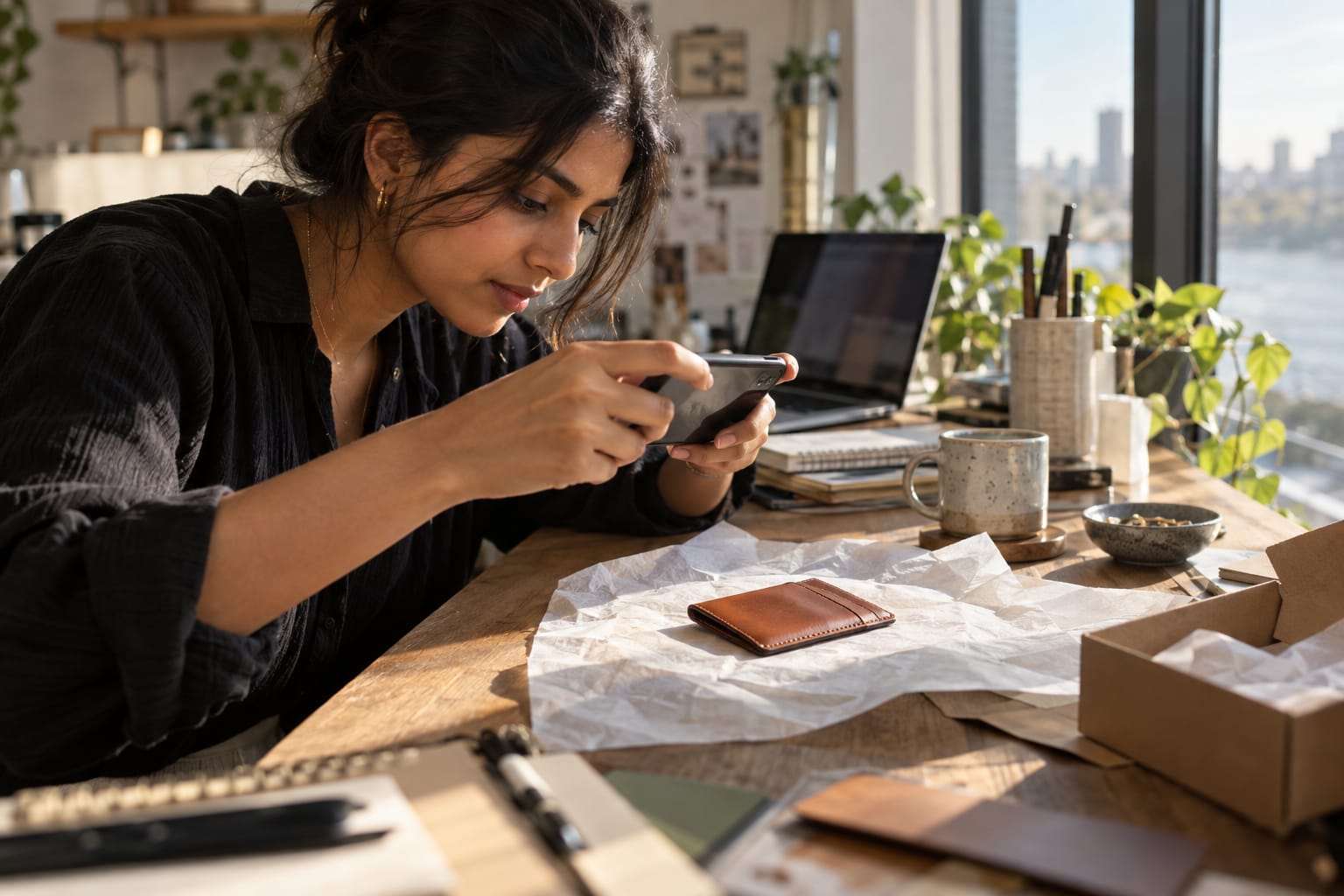
Turn Smartphone Snapshots into Pro Product Photos with ChatGPT and Canva

 Published by CodeNicely, the product studio founded by Meghal Agrawal and Ujjwal Agrawal in 2017
For: A solo founder running a 2-year-old Shopify accessories brand who shoots product photos on an iPhone, can't afford a studio day, and needs listing-ready images this week
In this guide
By the end of this tutorial, you'll have a batch of on-brand, background-cleaned product images ready to upload to your Shopify store, built from the photos already on your phone. Plan on about 20 minutes to set up your visual brief and roughly 5-8 minutes per product once you're in the rhythm.
Last verified: October 2026, against the tools' own documentation. AI tools change often — if a step no longer matches, check the sources at the end.
Who this is for, and what you'll get
You run a small accessories brand. You shoot on an iPhone because a studio day costs more than a week of ad spend, but your raw photos look amateur next to competitors with proper white-sweep lighting. You don't need a photographer — you need a repeatable system.
What you'll walk away with:
- A written visual brief that defines your brand's lighting, shadows and background so every future shot looks like part of one shoot.
- A set of product images with clean, consistent backgrounds (transparent PNGs, or a brand-colour backdrop).
- A Canva Brand Kit holding your colours and logo so the next SKU takes minutes, not hours.
This is the honest version of using AI for e-commerce photos: it won't replace a real studio for a hero campaign, but it absolutely replaces a mediocre studio day for standard listing images.
What you need
Both tools in this workflow require paid tiers for the steps that actually matter. If you try to do this on the free plans, you'll hit a wall at background removal and transparent export. Here's the real picture:
| Tool | Plan needed | Why | Cost |
|---|---|---|---|
| ChatGPT | Free works for the brief; paid helps with volume | You'll use it to write your visual brief and (optionally) call the Photoroom GPT. Free is capped at 3 file uploads per day and has stricter image-generation limits. | Check current pricing on openai.com |
| Canva | Canva Pro (or Teams / Education / Nonprofits) | BG Remover and the 'Transparent background' export checkbox are Pro-only. The Brand Kit is also included in Pro. | Roughly $12.99-$15/month or $119.99-$120/year — check canva.com/pricing for your region |
| Your iPhone | Any model | You already have it. Shoot in good natural light near a window and keep each image under 9 MB (Canva's BG Remover limit) and under 20 MB (ChatGPT's upload limit). | Free |
Step by step
- Shoot the raw photos properly first. Place the product near a large window, shoot in the middle of the day, and take 3-4 angles per SKU: front, 3/4, top-down, and a detail shot. AI can fix the background, but it cannot fix a blurry, under-exposed photo. Keep each file under 9 MB so Canva will process it; iPhone HEIC files are usually fine.
- Write your visual brief in ChatGPT. This is the step most tutorials skip, and it's the whole reason your images will look consistent. Open ChatGPT and paste a prompt like the one below. The goal is a short, written specification you'll reuse for every product.
I run a [describe your brand in one sentence — e.g. minimalist leather accessories brand for women aged 25-40]. I shoot product photos on an iPhone near a window and edit in Canva. Help me write a short visual brief (under 150 words) that defines, for all my product listings: (1) background colour or treatment, (2) lighting style and direction, (3) shadow treatment under the product, (4) how much of the frame the product should fill, (5) any props or no props. Keep it specific enough that a non-designer can follow it every time.
Save the answer in a note. This is your rulebook. - Set up your Canva Brand Kit. In Canva, open the Brand Kit (included with Canva Pro) and add your logo, brand colours (hex codes from your Shopify theme), and brand fonts. This means when you drop a background colour behind a product later, you can click your exact brand hex instead of eyeballing it.
- Remove the background — the honest version. You have two routes. Pick based on the product.
- Route A (recommended for most accessories): Canva BG Remover. Upload your photo to a Canva design, click the image, click Edit image in the top toolbar, then select BG Remover from the side panel and wait a few seconds. You can also select the image, choose Ask Canva from the floating toolbar, and type
Remove background— that triggers the same tool. - Route B (for products with soft edges, hair-like fringe, mesh, or semi-transparent elements): the Photoroom GPT inside ChatGPT. In ChatGPT, go to Explore GPTs, search for Background Remover by Photoroom, open it, and upload your image. ChatGPT handles the chat and files; Photoroom's engine does the actual cutout, which is more reliable on tricky edges than ChatGPT's own image model. Download the result and bring it into Canva for the rest.
A note on ChatGPT's native background removal (ChatGPT Images 2.5): it can output a transparent PNG when you ask it to, and it's available on all plans including Free. But it uses hard cutouts — soft edges, glows, cast shadows and semi-transparent elements get flattened or eliminated. For jewellery with fine chains, lace, or fringe, don't rely on it. Use the Photoroom GPT or Canva's BG Remover instead.
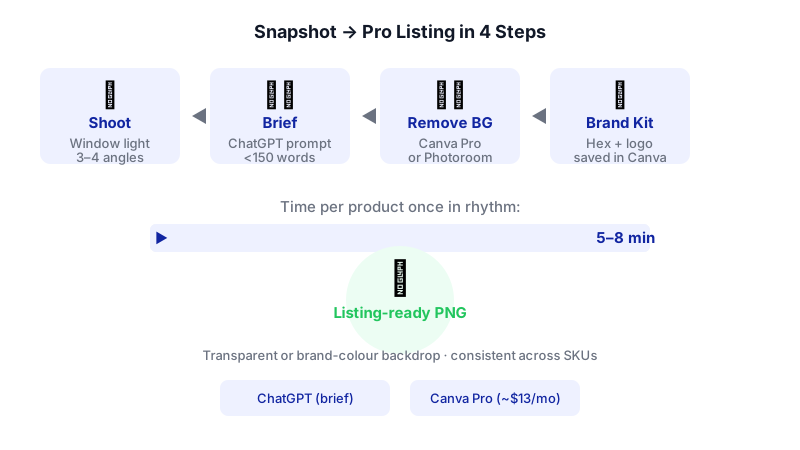
Watch the four steps light up in sequence, then notice the 5–8 minute-per-product bar — that's the real payoff once your visual brief is written. - Route A (recommended for most accessories): Canva BG Remover. Upload your photo to a Canva design, click the image, click Edit image in the top toolbar, then select BG Remover from the side panel and wait a few seconds. You can also select the image, choose Ask Canva from the floating toolbar, and type
- Clean up the cutout. In Canva, click the image again and reopen BG Remover. Use the Erase and Restore brushes to fix any missed hair-thin straps or over-cut shadows. These brushes only work on canva.com and the Canva desktop app, not on the Canva mobile app — so do this step on a laptop.
- Apply your brief. Drag a background rectangle onto the canvas and set it to your brand colour from your Brand Kit (or leave it transparent if your Shopify theme already uses a specific backdrop). Add a soft drop shadow under the product if your brief calls for one. Resize so the product fills the frame the same amount every time — a quick trick is to make a reusable Canva template at your Shopify image dimensions (commonly 2048 × 2048 px for square product tiles) and drop each product into it.
- Export as a transparent PNG (or a flat PNG on your brand colour). Click Share → Download. Choose PNG as the file type. If you want a transparent background, tick the Transparent background checkbox — this checkbox only appears for Canva Pro users. PNG is the only Canva export that preserves transparency; JPG will fill transparent areas with white.
- Batch the rest of the SKUs. Duplicate your template page for each product, drop in the next photo, run BG Remover, nudge, export. Once the brief and template are set, each product takes a few minutes.
- Upload to Shopify and sanity-check on mobile. Upload the images to each product page and preview on an actual phone — not just desktop. Most of your customers see these at thumbnail size, so if the product doesn't read clearly at 400 px wide, go back and crop tighter.
A worked example
Say you sell small-batch leather card wallets and you've just launched three new colours: cognac, forest and black. You shot four angles per wallet on your kitchen counter at 10am.
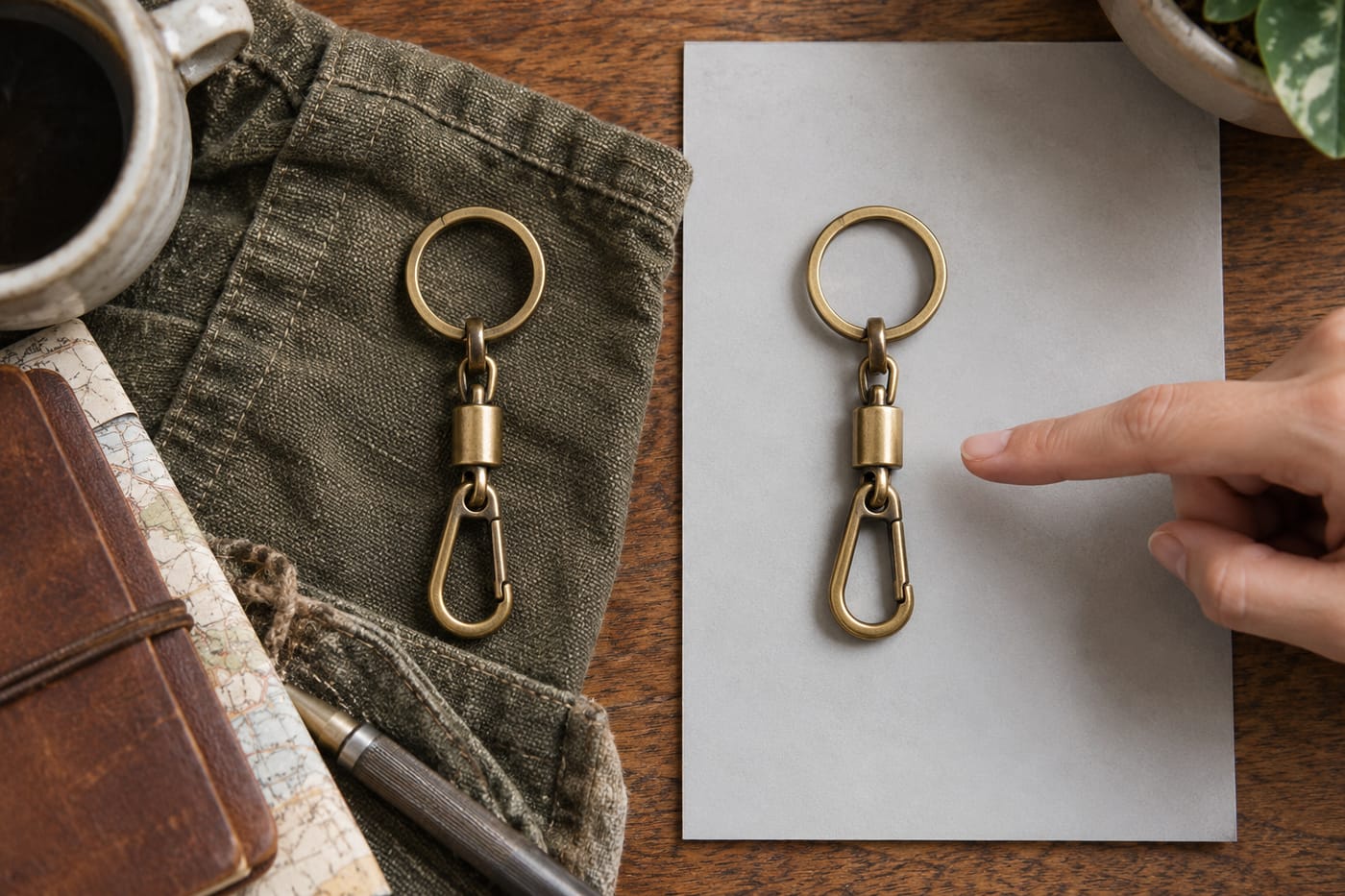
Your ChatGPT brief (sample output):
Background: soft warm off-white (#F4EFE8). Lighting: single soft source from the upper left, mimicking window light; no harsh highlights on the leather. Shadows: a subtle, soft shadow directly beneath the wallet, around 30% opacity, no cast shadow to the side. Framing: wallet fills about 65% of the frame, centered, with equal breathing room top and bottom. No props. For detail shots, zoom to show stitching and edge paint; keep the same background colour.
What good output looks like: all 12 images (3 wallets × 4 angles) sit on the same off-white background, with the same soft shadow underneath, and the wallet is roughly the same size in every frame. If you scroll your Shopify collection page, nothing jumps out as 'the one shot in a different place'. That consistency is what makes a storefront look professional, not any individual photo being a masterpiece.
Limits and gotchas

- Canva BG Remover won't process files over 9 MB, and any image over 10 MP gets downscaled to 10 MP after removal. For most iPhone photos this is fine, but if you've shot in ProRAW, export a smaller JPEG first.
- BG Remover doesn't work on vector files — only JPG, PNG, HEIC and HEIF.
- Mobile Canva can't do the Erase/Restore cleanup. Do your editing on a laptop.
- ChatGPT Free uploads are capped at 3 files per day, and image generation has a separate, stricter cap that isn't a published number — you'll just see an in-product notice when you hit it. If you're processing a lot of SKUs through the Photoroom GPT, batch your work or upgrade.
- ChatGPT's native background removal flattens soft edges. Don't use it as your main cutout tool for jewellery, lace, mesh, hair, or anything with wisps. Use Canva BG Remover or the Photoroom GPT.
- Human check: always zoom to 100% before export and look at the edges. AI tools occasionally leave a one-pixel halo of the old background, especially on dark products shot against dark surfaces.
- Privacy: you're uploading product photos to third-party cloud tools. That's fine for product shots, but don't use these tools for anything with people's faces, home addresses in the background, or unreleased designs you haven't publicly announced.
When not to use AI for this, and honest alternatives
This workflow is right for standard listing images, variant swatches, and refreshing an existing catalogue. It is the wrong tool for:
- Hero campaign imagery — your homepage banner, a seasonal lookbook, a paid-ad set designed to run for six months. Hire a photographer for those. The ROI is clear and AI cutouts won't give you the depth of real lighting.
- Lifestyle shots with models — AI-generated people on your product are a brand risk and often look uncanny. Use real photography or licensed stock.
- Products where material matters enormously — fine jewellery, watches, high-end leather. The subtleties of real reflections and shadow are part of what you're selling.
Honest alternatives for those cases: a half-day with a local product photographer (often under the cost of a bad ad week), a lightbox kit for under $100 if you shoot high volume, or Photoroom's standalone app if you want a dedicated phone-first tool rather than Canva.
Frequently Asked Questions
Can I do all of this on the Canva free plan?
No. Canva's BG Remover and the 'Transparent background' export checkbox are both Canva Pro features. On Free, you'll see the BG Remover button with a crown icon, and clicking it just takes you to an upgrade screen. If you want to stay free, use the Photoroom GPT inside ChatGPT for background removal, then export a flat PNG from Canva on a solid colour background — but you lose the Brand Kit and transparent export.
What's the best AI image generator for e-commerce product photos?
For product listings specifically, the best setup today isn't a generator — it's a cutout tool plus a template. Generators tend to invent product details that don't match your actual SKU, which creates returns. The workflow above (real photo + Canva BG Remover or Photoroom + brand template) gives you accurate, consistent images without the hallucination risk.
How do I keep images consistent across dozens of SKUs?
Three things: a written visual brief (step 2), a saved Canva template at your Shopify image dimensions, and a Brand Kit with your exact hex colours. Once those three exist, each new product is drop-in-and-export. The consistency comes from the template, not from any single photo being perfect.
Will Shopify accept transparent PNGs?
Yes, Shopify accepts PNGs with transparency and will render them on whatever background your theme uses. One tip: preview on both desktop and mobile, because some themes add a subtle grey panel behind product images that can look odd against a transparent cutout.
How long does this take once I've set it up?
The first time, budget 60-90 minutes for the brief, Brand Kit and template. After that, each new product typically takes 5-8 minutes end-to-end: upload, remove background, nudge, export. A 20-SKU catalogue refresh is a focused afternoon, not a week.
If this workflow starts to creak — hundreds of SKUs, multi-angle automation, or a direct Shopify sync — that's the point where an off-the-shelf stack stops paying for itself and a custom build (which is what we do at CodeNicely) becomes the cheaper option.
Sources & further reading
- Images in ChatGPT – OpenAI Help Center
- ChatGPT Free Tier FAQ – OpenAI Help Center
- Uploading files and audio to ChatGPT – OpenAI Help Center
- ChatGPT Release Notes – OpenAI Help Center
- Remove a background with Background Remover GPT – Photoroom Help Center
- Remove photo and video backgrounds – Canva Help Centre
- Make Transparent Images with Canva Pro – Canva
- ChatGPT Can Now Do Transparent Backgrounds (Sort Of): What's Changed in 2026 – Little 6 LLC
- Canva Background Remover: Free Plan Limits (2026) – Krea
- How to Remove Background in Canva: Step-by-Step Guide (2026) – Zawa
Get one practical guide a week
Costs, AI tools, partner selection — written for people who make the decision. No spam, unsubscribe anytime.
Thanks — you're on the list. One practical guide a week, nothing else.
That didn't work — please check the email address and try again.
Building something in E-commerce?
CodeNicely partners with founders and tech teams to ship AI-native products that move metrics. Tell us about the problem you're solving.
Talk to our team Book a 30-min call