Build a Weekly Priority Plan from Your Inbox with Gemini in Gmail

 Published by CodeNicely, the product studio founded by Meghal Agrawal and Ujjwal Agrawal in 2017
For: An operations manager at a 30-person SaaS company who starts every Monday buried in 200+ unread emails and spends the first two hours just figuring out what actually needs attention this week
In this guide
By the end of this tutorial you'll have a ranked, time-blocked weekly action plan built directly from your Gmail inbox, ready to work from on Monday morning. Expect to spend 25–40 minutes the first time, and about 10 minutes a week once you've saved the prompt.
Last verified: November 2026, against the tools' own documentation. AI tools change often — if a step no longer matches, check the sources at the end.
Who this is for, and what you'll get
This is written for an operations manager at a small SaaS company (think 20–50 people) who opens Gmail on Monday to 200+ unread messages and loses the first two hours of the week just figuring out what matters. If that's you, you'll finish this tutorial with:
- A single Gemini prompt that scans your inbox and returns a ranked list of what actually needs your attention this week.
- A simple time-blocked plan (by day, then by priority) you can paste into Notion as your working doc for the week.
- A repeatable 10-minute Monday ritual that replaces inbox scrolling.
One honest caveat up front: there is no one-click "Gmail → Notion weekly plan" button. The workflow below is Gemini in Gmail doing the thinking, you doing a copy-paste into Notion. We'll explain why, and show you the cleanest path.
What you need
| Tool | Plan required | Cost | Why you need it |
|---|---|---|---|
| Gemini in Gmail (side panel) | A paid Google Workspace plan (Business Starter or above) or a personal Google AI plan. Free Gmail doesn't get the full side panel. | Business Starter from $7/user/month (annual); Business Standard from $14/user/month (annual). Gemini is bundled at no extra cost since January 2025. | Reads across your whole inbox and generates the ranked plan. |
| Notion | Any plan works for pasting the plan into a page. The Notion AI Connector for Gmail (optional, read-only) requires a Notion Business plan ($20/user/month billed annually) or Enterprise. | Check the current plan on Notion's pricing page. | Home for your weekly plan so you work from one place, not your inbox. |
A quick note on region: if you're in the EU, UK, Switzerland, or Japan, Gemini's automatic summary cards are off by default. You'll need to enable smart features manually (covered in Step 1).
Step-by-step
Turn on smart features in Gmail. In Gmail, open Settings > See all settings > Smart features and personalization and switch it on. Without this, Gemini's summary cards and some side-panel behaviour won't appear. If you're outside the EU/UK/Switzerland/Japan this is usually on already, but check.
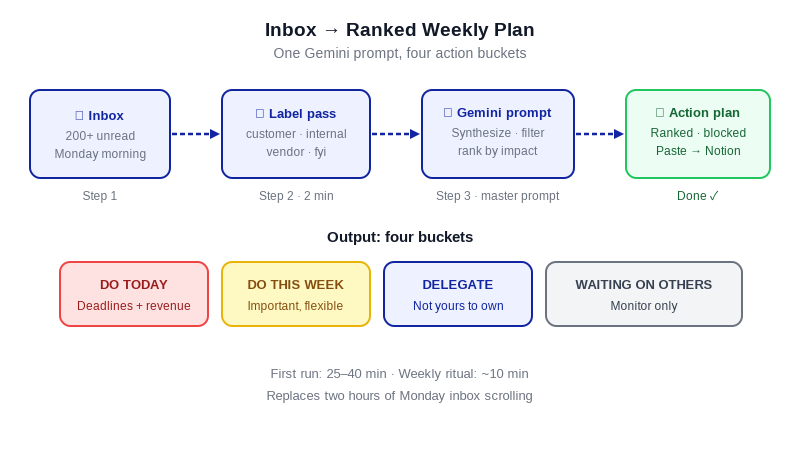
Watch the workflow light up step by step — the Gemini prompt does the synthesis, and your only job is to paste the four-bucket output into Notion. 
Each step produces a concrete output — a prompt saved, a plan written, a morning ritual locked in. Open the Gemini side panel in Gmail. Click the Gemini icon on the right side of your Gmail window. This is the panel that can query across your inbox — not the per-email "Summarize this email" chip. The chip is useful for one thread; the side panel is what we need to scan the whole inbox.
Do a quick label pass first (2 minutes). This is the single change that makes Gemini's output dramatically better. Scroll your unread list and apply labels to anything obviously in one of these buckets:
customer,internal,vendor,fyi. Don't be precious — 80% accuracy is fine. You can ask Gemini to help: in the side panel, try "Suggest a label for the most recent 20 unread emails and explain why in one line each." Labels give Gemini anchors to reason about.Run the master prompt. This is the step most tutorials get wrong. Don't ask Gemini to summarize emails one at a time — that just gives you a longer inbox. Ask it to synthesize across your inbox and rank. Paste this into the Gemini side panel:
You are my chief of staff. Look at all unread and recent emails in my Gmail from the last 7 days. Ignore newsletters, marketing, calendar invites, and automated notifications. For every email that contains a request, decision, deadline, escalation, or blocker, extract:
1. Who is asking and what they actually need from me
2. The real deadline (explicit or implied)
3. Business impact if I don't act (revenue, customer, team, compliance)
4. Estimated effort in minutes
Then produce a single ranked weekly action list, highest priority first. Rank by a combination of deadline urgency and business impact. Group the list into: DO TODAY, DO THIS WEEK, DELEGATE, and WAITING ON OTHERS. For each item include a one-line "why this ranking" note and the sender's name so I can find the thread.Why this works: you're asking for synthesis, filtering, and ranking in one pass — not a digest. The explicit ignore list keeps noise out, and the four buckets give you an action structure instead of a wall of text.
Review and challenge the list. Read it with a skeptical eye. Gemini can misread tone and miss context (an email from your CEO saying "when you get a chance" is not low priority). In the same side-panel conversation, push back:
Re-check items 4, 7, and 9. For each, quote the exact sentence from the email that led you to assign that priority. If you can't find a clear sentence, downgrade the item.
This forces grounding and catches hallucinated urgency. Do one or two rounds until the list feels right.
Ask for a time-blocked day plan. Now turn the ranked list into a calendar-shaped plan:
Using the ranked list above and assuming I have 6 hours of focus time per day Monday–Friday, build me a time-blocked plan. Each block should be 30, 60, or 90 minutes. Put DO TODAY items on Monday, spread DO THIS WEEK across Tuesday–Thursday based on deadline, and leave Friday afternoon as buffer. For each block, write: day, time estimate, task, sender, and the first concrete action I should take (e.g. "reply to Priya confirming the SOC2 evidence list").
Export the plan out of Gmail. Here's where the native workflow runs out. In the Gemini response, use the Share & export menu — the only built-in destinations are Google Docs and Gmail drafts. Pick Export to Docs. This gives you a durable copy, because side-panel conversations don't always persist after you close the tab.
Move the plan into Notion. Open the Google Doc, select all, copy, and paste into a new Notion page titled something like Week of [date] — Priority Plan. Notion will preserve the headings and lists. Convert the time-blocked section into a to-do list by selecting the lines and switching the block type to To-do list. This is your working doc for the week.
If you want this automated and you're on Notion Business or Enterprise, you can use a third-party tool like Zapier to push labelled Gmail emails into a Notion database as rows. The Notion AI Connector for Gmail itself is read-only — it can search your inbox from inside Notion, but it cannot write action items into a Notion database. Since Notion Mail was shut down on September 22, 2026, there's no first-party way to turn Gmail messages into Notion database rows.
(Optional) Push the top items to Google Tasks. Gemini in Gmail can create Google Tasks from emails. If your calendar is in Google, ask: "Create Google Tasks for the five DO TODAY items with their deadlines." They'll show up in your Google Tasks sidebar and calendar. This writes to Tasks, not to Notion, so pick one home and stick with it.
Save the prompt and make it a Monday ritual. Save the master prompt in a Notion page called Weekly Planning Prompt. Every Monday at 8:30, do the label pass, run the prompt, review, time-block, export to Docs, paste to Notion. Ten minutes.
A worked example
Meet Sam, ops manager at a 30-person B2B SaaS company. Monday 8:30 am, 217 unread emails.
Sam does the 2-minute label pass: 14 customer, 23 internal, 6 vendor, rest ignored. Pastes the master prompt into the Gemini side panel.
Gemini comes back with a list that looks like this (abbreviated):
DO TODAY
- Respond to Priya (CFO) on the Q4 vendor renewal list — she needs numbers by EOD Tuesday for the board pack. Why: board deadline, CFO request, 45 min effort.
- Approve updated SOC2 access-review spreadsheet from Marcus (security). Why: audit window closes Thursday, 20 min.
- Reply to Acme Corp (customer, $48k ARR) on renewal pricing question — thread is 4 days old. Why: active renewal, risk of silence, 30 min.
DO THIS WEEK — 7 items, including vendor contract review, onboarding doc sign-off, Q1 hiring plan input.
DELEGATE — 3 items Gemini flagged as better suited for Sam's coordinator.
WAITING ON OTHERS — 5 items, each with the person Sam is waiting on and when to follow up.
Sam challenges two items ("why is the Zendesk billing email ranked so high?"), Gemini re-reads and downgrades one. Then Sam asks for the time-blocked plan: Monday is Priya + SOC2 + Acme + two internal replies. Tuesday is vendor contracts. Wednesday is hiring plan. Friday afternoon is buffer. Exports to Docs, pastes into Notion, closes Gmail. Total elapsed: 14 minutes.
Limits and gotchas

- No direct Gmail-to-Notion pipeline. Gemini in Gmail's only built-in export destinations are Google Docs and Gmail drafts. Notion requires a copy-paste or a third-party automation.
- Side-panel conversations don't always persist. On some plans, the Gemini conversation in Gmail is not saved to Gemini history and won't appear in Google Takeout. Export to Docs before closing the tab.
- Auto-summaries are English-only. Gemini's automatic summary cards only appear for emails in English. For other languages, use the "Summarize this email" chip or the side panel manually.
- Region defaults. In the EU, UK, Switzerland, and Japan, smart features are off by default — you have to turn them on in Settings.
- Human check required. Gemini can misjudge tone and urgency. Always do one "quote the sentence" challenge pass before trusting the ranking.
- Privacy. You are asking an AI to read your inbox, which may include customer PII, legal matters, or HR conversations. Confirm your company's AI usage policy and your Workspace admin's data settings before making this a habit.
- Notion AI Connector is read-only. It can search Gmail from inside Notion but cannot write action items into a database. Don't expect it to build the plan for you.
When not to use AI for this, and honest alternatives
Skip this workflow if your inbox contains material your company has not cleared for AI processing — regulated data, active legal matters, M&A discussions. In that case, a 30-minute manual triage using a classic Eisenhower matrix (urgent/important) in a plain Notion page is slower but safer.
If your real problem is volume, not prioritization — you genuinely get 500 real emails a week — the answer isn't a better prompt; it's unsubscribing aggressively, moving team chat to Slack, and setting up filters. AI will help you cope with the mess but won't fix it.
And if most of your work lives in a ticketing tool (Jira, Linear, Zendesk) rather than email, build your weekly plan from there instead. Email-driven planning only makes sense if email is where the decisions actually happen.
Frequently Asked Questions
Do I need the paid Gemini plan, or will the free Gmail Gemini features do?
You need the full Gemini side panel, which requires a paid Google Workspace plan (Business Starter from $7/user/month annual, or Business Standard from $14/user/month annual) or a personal Google AI plan. Free Gmail users don't get the side panel that queries across the whole inbox, so this specific workflow won't work on free.
Can I make this fully automatic so I don't have to copy-paste into Notion every week?
Not with native features alone. Gemini in Gmail only exports to Google Docs or Gmail drafts, and the Notion AI Connector for Gmail is read-only. If you want automation, use Zapier or a similar tool to push labelled Gmail emails into a Notion database as rows, then run a separate AI step inside Notion to rank them. That's a bigger build, but it's the honest path.
What happened to Notion Mail? I thought it integrated with Gmail.
Notion Mail was shut down on September 22, 2026 and is no longer available. The surviving integration is the Notion AI Connector for Gmail, which lets Notion AI search and summarize your inbox via natural-language queries from inside Notion, but it cannot write anything back into your Notion workspace.
How do I stop Gemini from inventing deadlines or urgency that isn't actually in the emails?
Always run the challenge step: ask Gemini to quote the exact sentence from the email that justifies each priority ranking. If it can't produce a clean quote, downgrade or remove the item. This grounds the model in the actual text and catches most hallucinated urgency in one pass.
Is it safe to let Gemini read my work inbox?
That's a question for your Workspace admin and your company's AI policy, not for a tutorial. Workspace-tier Gemini has different data handling than consumer Gemini, but you should confirm your organization's settings before making this a routine, especially if your inbox contains customer PII, HR matters, or regulated data.
If this weekly ritual starts hitting a ceiling — you want true automation from Gmail into a Notion database with AI ranking baked in — that's the point where a small custom build (which CodeNicely does) becomes a better investment than stitching more tools together.
Sources & further reading
- Collaborate with Gemini in Gmail – Google Help Center
- Notion AI connector for Gmail – Notion Official Help
- Notion AI Connector for Gmail – Notion Connections Page
- New Gemini summary cards now available in the Gmail app – Google Workspace Updates Blog
- Gemini will now automatically summarize your long emails – TechCrunch
- Google Workspace Pricing 2026: All Plans, History & What Changed – GetPricePulse (checked Nov 23 2026)
- How to Use Notion AI Connectors Setup in 2026 – eesel.ai
- A complete guide to the Notion AI connector for Gmail – eesel.ai
- How to Use Notion Gmail Integration for Lead Management in 2026 – lead-to-notion.com
- Notion (productivity software) – Wikipedia
Get one practical guide a week
Costs, AI tools, partner selection — written for people who make the decision. No spam, unsubscribe anytime.
Thanks — you're on the list. One practical guide a week, nothing else.
That didn't work — please check the email address and try again.
Building something in Productivity?
CodeNicely partners with founders and tech teams to ship AI-native products that move metrics. Tell us about the problem you're solving.
Talk to our team Book a 30-min call