
Build a Shift Schedule for 20+ Staff with ChatGPT and Excel

 Published by CodeNicely, the product studio founded by Meghal Agrawal and Ujjwal Agrawal in 2017
For: Operations manager at a 40-person quick-service restaurant or retail chain who manually rebuilds the staff rota every Sunday night and regularly misses coverage gaps until Monday morning
In this guide
By the end of this tutorial you'll have a reviewed weekly shift schedule for 20 to 40 staff, generated as a draft by ChatGPT and finalised in an Excel template you can send out the same evening. Budget about 30 minutes the first time, and closer to 15 minutes once your constraint list is saved.
Last verified: November 2026, against the tools' own documentation. AI tools change often — if a step no longer matches, check the sources at the end.
Who this is for, and what you'll get
This is for the operations manager, duty manager or owner of a quick-service restaurant, cafe chain or retail store with roughly 20 to 40 staff on a weekly rota. You know who's available, you know your coverage requirements, and right now you're dragging names into a grid every Sunday night.
You'll walk away with three things: a reusable constraint brief that captures your rules in plain English, a ChatGPT-generated draft schedule for the week, and an Excel workbook with the schedule laid out, highlighted for review, and ready to share.
One thing to be honest about up front: this is not full automation. ChatGPT does not solve constraint-satisfaction problems. It produces text that looks like a valid schedule, and you still have to verify that overtime caps, role coverage and consecutive-day limits actually hold. If you need guaranteed compliance across a large roster, you need a dedicated workforce tool — more on that at the end.
What you need
| Tool | Plan | Why this tier |
|---|---|---|
| ChatGPT | Free works; Plus ($20/month) recommended | Free is capped at roughly 3 file uploads per day. Plus allows up to 80 file uploads every 3 hours, which matters if you iterate on availability spreadsheets. Check the current plan on the vendor's pricing page. |
| Microsoft Excel | Any version with the built-in templates | You'll use the free Weekly employee shift schedule template available via File > New and searching schedule. |
Optional but useful: a simple CSV or XLSX export of staff names, roles and availability. ChatGPT can read XLSX, XLS, CSV and TSV files, with a practical limit of about 50 MB per file and a hard cap of 512 MB — nothing a staff list will come close to.
Step-by-step
Write your constraint brief before you open ChatGPT. This is the single step most tutorials skip, and it's where the whole workflow lives or dies. In a text file or Word doc, write down: roles that must be covered each shift (e.g. 1 shift lead + 2 line + 1 front counter for lunch), minimum and maximum weekly hours per person, overtime threshold (e.g. flag anyone over 40 hours), maximum consecutive days worked, and any fixed rules like "Priya never closes" or "students only after 4pm weekdays". Without this list, ChatGPT will produce something plausible but unenforceable.
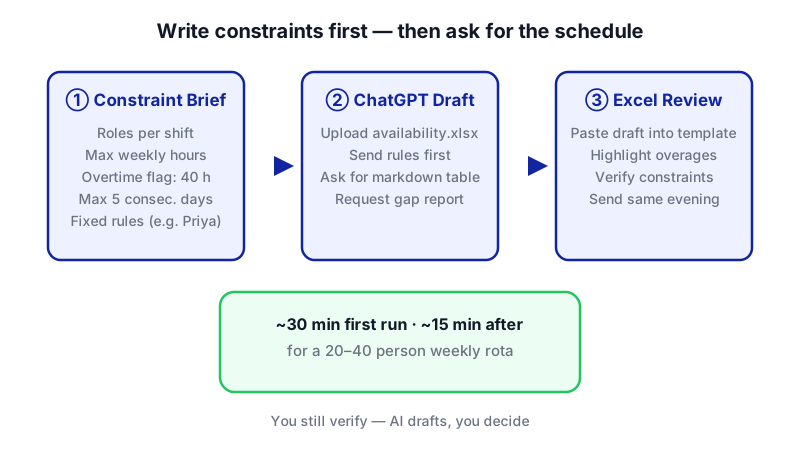
Each step lights up in order: writing the constraint brief first is what makes the AI output usable — skip it and the schedule is unenforceable. 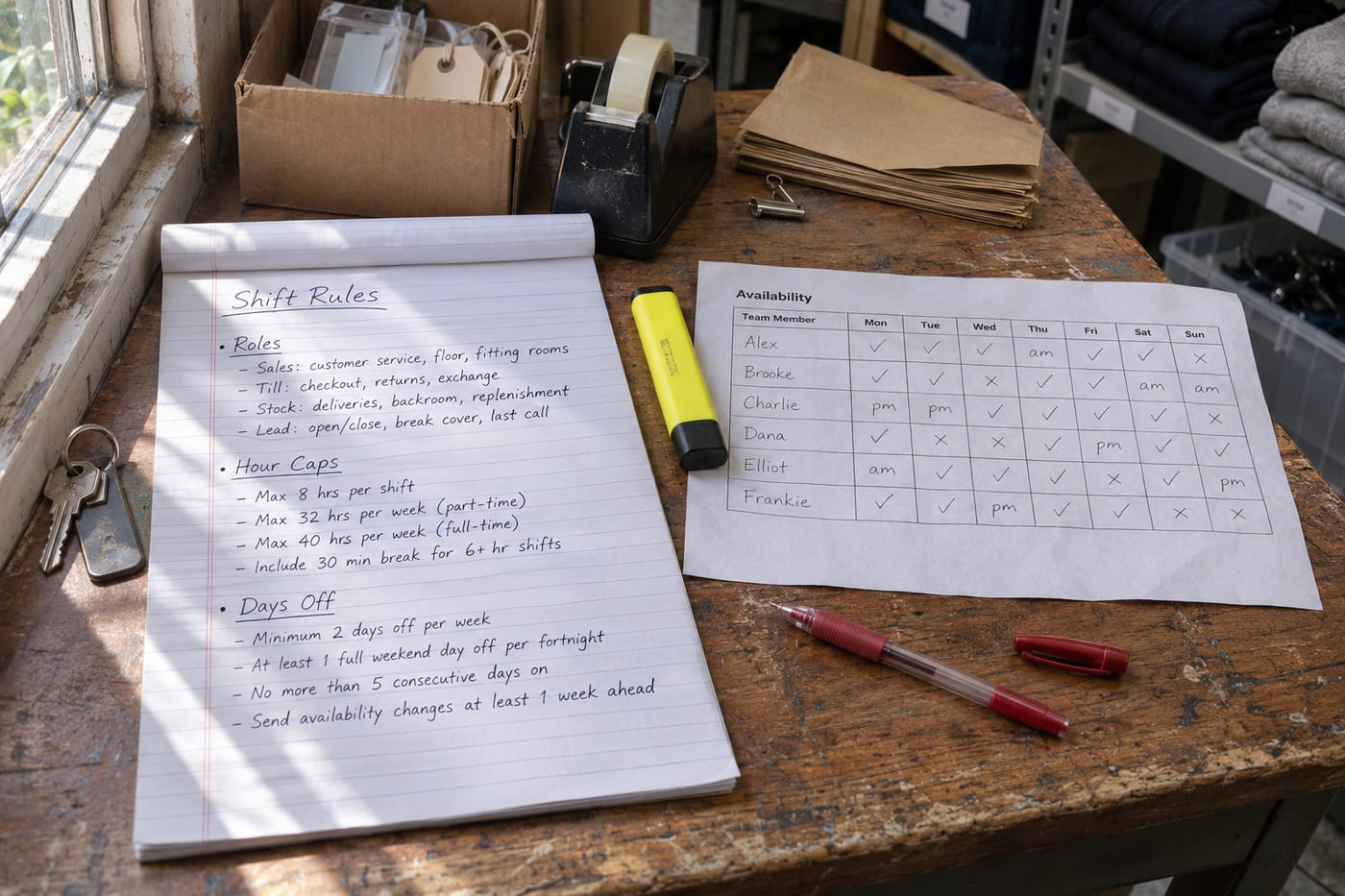
Writing your constraint brief on paper before opening any tool is the step that makes the AI output usable. Prepare your staff availability as a simple table. Open a blank Excel sheet with columns: Name, Role, Max Hours, Mon, Tue, Wed, Thu, Fri, Sat, Sun. Fill availability per day as time ranges (
09:00-17:00) orOFF. Save asavailability.xlsx. Keep it to the current week only — ChatGPT has no memory between sessions, so there's no benefit in sending historical data.Open a new ChatGPT conversation and upload the availability file. On Plus, drag
availability.xlsxinto the message box. On Free, you can do the same but you'll burn one of roughly three daily upload slots — if you're iterating, consider pasting the table as text instead.Send the constraint brief as your first message. Do not ask for a schedule yet. You're loading the rules first so the next prompt has context.
You are helping me draft a weekly shift schedule for a 32-person quick-service restaurant. Before I ask for the schedule, here are the hard rules. Please read them and confirm you've understood before I send the availability.
1. Shifts are Open (07:00–15:00), Mid (11:00–19:00), Close (15:00–23:00).
2. Every shift needs: 1 Shift Lead, 2 Line Cooks, 1 Front Counter, 1 Drive-Thru. Lunch (11:00–14:00) needs an extra Line Cook and an extra Front Counter.
3. No one over 40 scheduled hours per week. Flag anyone at 38–40.
4. No more than 5 consecutive days worked.
5. Minimum 10 hours between a Close and the next Open for the same person.
6. Students (marked "S" in the role column) only after 16:00 on weekdays.
7. Honour availability exactly — never schedule someone outside their stated availability.Ask for the draft schedule as a markdown table. Once ChatGPT confirms the rules, send the availability (uploaded or pasted) and ask for the output in a specific format you can paste into Excel.
Here is the availability. Produce a draft schedule for the week as a markdown table with columns: Name, Role, Mon, Tue, Wed, Thu, Fri, Sat, Sun, Total Hours. Each cell should be either the shift name (Open / Mid / Close / Lunch) or OFF. After the table, list any coverage gaps you could not fill and any constraint you had to break, with the reason.
That last sentence is important. ChatGPT will otherwise quietly fudge a constraint rather than admit a gap.
Read the "gaps and broken constraints" section first. Before you look at the grid, scan what ChatGPT says it couldn't do. Typical honest answers include "Saturday Close is short one Line Cook" or "Rahul is at 42 hours — availability was too narrow to stay under 40". If you don't see this section, ask explicitly: Which shifts are under-covered, and who is over 40 hours?
Open the Excel template. In Excel, go to
File > Newand search for schedule. Choose the Weekly employee shift schedule template. This gives you a clean layout for days, staff and shift times — none of which auto-assigns anyone, but all of which is already formatted.Transfer the ChatGPT table into the template. This is the honest part of the workflow: you will do some copy-paste. The fastest path is to copy the markdown table from ChatGPT, paste it into a blank sheet (Excel will split it across columns on most recent versions; if not, use
Data > Text to Columnswith pipe|as the delimiter), then paste values into the template cells. Expect 5–10 minutes for a 30-person rota.Add validation formulas in Excel to catch what ChatGPT might have missed. Add a Total Hours column using
SUMPRODUCTor a simpleCOUNTIF-based formula to sum shift hours per person. Then apply conditional formatting: highlight red where total hours exceed 40, amber for 38–40. Add a second check row per day that counts how many Shift Leads, Line Cooks, Front Counter and Drive-Thru are assigned per shift, and conditionally format any cell below the required count in red. This is the enforceability layer the AI cannot give you.Do a 5-minute manual sweep. Walk through every red and amber cell. Fix by swapping shifts between available staff. Re-check totals. Save the file. Share via your usual channel.
A worked example
Imagine you run a 32-person quick-service restaurant. You've written the constraint brief above and uploaded an availability file where Anita (Shift Lead) is available Mon–Fri 06:00–16:00, Marcus (Line Cook) is off Wed, and Zara (Student, Front Counter) is only available after 16:00 on weekdays plus all day Saturday.
After the constraint brief and the availability upload, ChatGPT returns a markdown table starting:
| Name   | Role        | Mon  | Tue  | Wed  | Thu  | Fri  | Sat   | Sun | Total |
| Anita  | Shift Lead  | Open | Open | OFF  | Open | Open | OFF   | OFF | 32    |
| Marcus | Line Cook   | Mid  | Mid  | OFF  | Mid  | Close| Close | OFF | 40    |
| Zara   | Front (S)   | OFF  | Close| Close| OFF  | Close| Mid   | OFF | 24    |
Below the table, ChatGPT flags: "Sunday Mid is short one Line Cook — only two staff with Line Cook role were available Sunday. Marcus is at exactly 40 hours; one more shift would breach the overtime rule."
Good output looks like this: a readable grid, totals that match what you'd expect, and an explicit list of what it couldn't solve. If you get a grid with no commentary and suspiciously tidy totals, assume it has been massaged — ask again.
Limits and gotchas

- ChatGPT doesn't actually solve the puzzle. It produces a plausible-looking schedule. It can miscount hours, double-book a person, or place someone outside their availability. Every output needs a human sweep, which is why step 9 exists.
- No memory between sessions. If you close the chat and come back Monday after a sick call, ChatGPT won't remember last week's rota. Paste the current schedule back in along with the swap you need.
- Markdown table, not a formatted workbook. There is no "export to Excel" button. You're copying a table. Budget for that.
- File upload limits. Free users get roughly 3 uploads a day; Plus gets up to 80 every 3 hours. Project file storage is 25 files on Plus, 40 on Pro/Business/Enterprise/Edu.
- Privacy. You are uploading staff names and availability to a third-party service. Use first names or initials only if your policy requires it, and check whether your organisation has rules about employee data in consumer AI tools.
- Labour law compliance is on you. Rest-break rules, minor-worker hours, union agreements, local overtime law — ChatGPT cannot verify any of this. Your manual sweep is also your compliance check.
When not to use AI for this, and honest alternatives
If any of the following are true, skip this workflow and move to a dedicated tool:
- You schedule more than about 40 staff, or multiple locations.
- You need staff to swap shifts themselves and have the rota update automatically.
- You operate under a union agreement or strict labour code and need an auditable trail.
- You want availability and time-off requests collected inside the same system.
Microsoft Shifts (part of Microsoft Teams) natively imports a schedule from Excel and lets managers track availability, time-off requests and import status. Deputy, When I Work and Homebase are purpose-built workforce management tools that handle constraint-based auto-assignment properly. For an operations manager running a stable 30-person site, the ChatGPT + Excel workflow is faster to start and free-to-cheap. For anything bigger or regulated, the dedicated tools pay for themselves.
Frequently Asked Questions
Can ChatGPT just output an Excel file directly?
With Advanced Data Analysis, ChatGPT can run Python and return a downloadable XLSX file. In practice the formatting is basic and you'll still want to paste the result into your Excel template for readable columns, conditional formatting and totals. Treat any generated file as raw data, not a finished rota.
How accurate are the hour totals ChatGPT calculates?
Unreliable enough that you must verify them. ChatGPT does arithmetic as language, not as a spreadsheet engine, and it regularly miscounts totals across 20+ rows. The Excel SUMPRODUCT or COUNTIF formulas you add in step 9 are the real source of truth.
Is the Free plan enough, or do I need ChatGPT Plus?
Free works for a single weekly run if you paste availability as text instead of uploading a file. Plus ($20/month) is worth it once you start iterating — reshuffling after a sick call, trying two draft versions — because the upload and message limits are much higher. Check the current plan on the vendor's pricing page.
What do I do when someone calls in sick on Monday morning?
Open a new ChatGPT chat, paste the current week's schedule, name the person who's out and the shift to cover, and list who's available. Ask for the smallest possible change that fills the gap without breaching your overtime or consecutive-day rules. Then re-run your Excel validation formulas.
Can I save my constraint brief so I don't rewrite it each week?
Yes. Keep the brief in a plain text file or a ChatGPT Project (Plus supports up to 25 files per project, Pro/Business/Enterprise/Edu up to 40). Paste it as the first message of each new chat. This is the single highest-leverage habit in the whole workflow.
If this workflow starts to creak — multi-site rotas, swap requests, compliance reporting — that's usually the sign you've outgrown off-the-shelf AI tools, and a custom scheduling build (which CodeNicely does) becomes the cheaper option.
Sources & further reading
- ChatGPT Plans and Pricing (Official)
- ChatGPT Free Tier FAQ (OpenAI Help Center)
- ChatGPT File Upload Limits: 512 MB a File, 20 per Message, 50 MB for Spreadsheets (2026)
- ChatGPT Spreadsheet Reading: Limits, Connectors, and Analysis Features
- Can ChatGPT Make a Work Schedule? Limitations and Better Alternatives
- ChatGPT for Workforce Scheduling: Prompts Guide
- ChatGPT for Data Analysis: How Leaders Turn Spreadsheets Into Insights (2026 Guide)
- How to Make a Schedule in Excel: Step-by-Step Guide (Homebase)
- Create a Shift Schedule Automatically: Excel Guide & Limits
- Excel File Size Limits: Documented Caps and Workarounds
Get one practical guide a week
Costs, AI tools, partner selection — written for people who make the decision. No spam, unsubscribe anytime.
Thanks — you're on the list. One practical guide a week, nothing else.
That didn't work — please check the email address and try again.
Building something in Operations?
CodeNicely partners with founders and tech teams to ship AI-native products that move metrics. Tell us about the problem you're solving.
Talk to our team Book a 30-min call