_1751731246795-BygAaJJK.png)

Build a Monthly Social Media Calendar with ChatGPT and Notion

 Published by CodeNicely, the product studio founded by Meghal Agrawal and Ujjwal Agrawal in 2017
For: A solo marketing manager at a 15-person e-commerce brand who handles every social channel alone and loses hours each week staring at a blank content calendar
In this guide
By the end of this tutorial you will have a 30-day social media calendar — with post copy, hashtags, platform tags and suggested posting times — living inside a Notion database that your team can view, filter and flip into a calendar view. Budget about 45–75 minutes the first time you do it; after that, running next month's plan takes closer to 20 minutes.
Last verified: October 2026, against the tools' own documentation. AI tools change often — if a step no longer matches, check the sources at the end.
Who this is for, and what you'll get
This is written for a solo marketing manager at a small e-commerce brand who runs every channel alone. If you spend half of each week trying to decide what to post, and the other half wishing you had time to actually reply to customers, this workflow is for you.
What you'll walk away with:
- A reusable brand brief you paste into ChatGPT every month.
- A single ChatGPT prompt that returns 30 days of posts as a clean table.
- A Notion database with columns for date, platform, hook, post copy, hashtags, posting time, asset notes and status.
- A calendar view of the same database so the team sees the month at a glance.
What you need
Both tools have usable free tiers for this workflow if you're working solo. The moment you add teammates as editors, Notion's pricing matters — more on that below.
| Tool | Minimum plan for this workflow | Cost | Why |
|---|---|---|---|
| ChatGPT | Free | $0 | The Free plan now provides unlimited everyday text chats on GPT-6 Luna, so drafting a month of copy in one session is realistic. Upgrade to ChatGPT Go ($8/month) or Plus ($20/month) if you want projects, scheduled tasks or custom GPTs for repeat use. If your copy is commercially sensitive, ChatGPT Business ($20/user/month annually or $25/month monthly) excludes business data from model training by default. |
| Notion | Free (solo) or Plus for team editing | $0 / $10 per user/month annually | Databases exist on every Notion plan. But the moment a second person joins the Free workspace as a member, a hard 1,000-block limit applies across the whole workspace. Plus removes that limit and raises the guest cap to unlimited. |
If your team only needs to read the calendar, Notion Free lets you share with up to 10 external guests at no cost — guests can view and comment but not edit by default.
Step-by-step
Write a one-page brand brief you'll reuse every month. This is the single highest-leverage thing in the whole workflow. ChatGPT can only sound like your brand if you tell it what your brand sounds like. Open a plain note and capture: what you sell, who you sell to, three competitors, your tone in three adjectives, five words you never use, three recent posts that performed well, and the current month's business goals (e.g. "drive pre-orders for the autumn candle launch"). Keep it under one page.
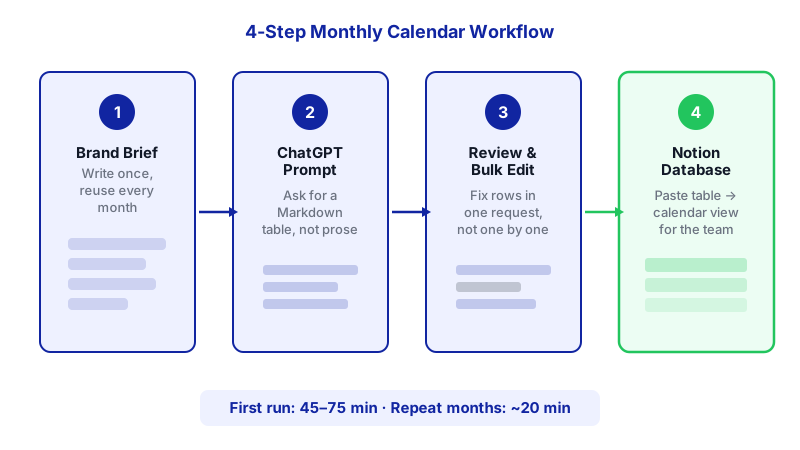
Each step lights up in order to show how a one-page brand brief flows through a single ChatGPT prompt, a bulk-edit pass, and lands as a ready Notion calendar — dropping repeat-month effort to around 20 minutes. 
A reusable brand brief — written once in your own words — is the highest-leverage step in the entire workflow. Open a fresh ChatGPT chat and paste the brief. Start the conversation by giving ChatGPT the brief and nothing else. Ask it to confirm it understands and to summarise your brand voice back to you in three bullets. If the summary feels off, correct it in the chat before you ask for any posts. This takes two minutes and saves an hour of rewriting.
Here is our brand brief. Read it carefully. Then summarise, in three bullets, (1) who we are talking to, (2) the tone we use, and (3) what we are trying to achieve this month. Do not write any posts yet.
Ask for the calendar as a table — this is the step most tutorials skip. The reason planners lose hours is reformatting. If you ask ChatGPT for "30 post ideas" you'll get prose you then have to chop up. Instead, ask for a Markdown table with the exact column headers you want in Notion. ChatGPT's table output pastes straight into a Notion database as rows.
Using the brand brief above, generate a 30-day social media content calendar for Instagram, TikTok and our email list, starting Monday [DATE]. Output ONLY a Markdown table with these exact columns, in this order: Date | Platform | Content Pillar | Hook | Post Copy | Hashtags | Suggested Posting Time | Asset Notes. Rules: one row per post, 1–2 posts per day, mix product, educational, behind-the-scenes and user-generated-content pillars. Post Copy must be fully written, not a placeholder. Hashtags: 5–8 relevant ones per Instagram post, none for email. Suggested Posting Time should be a specific time in the reader's local time zone based on when our audience (women 28–45, UK) is typically active. Asset Notes should describe the image or video needed in one sentence.
Review the table in the chat and request fixes in bulk. Scan for repetition, off-tone lines and anything factually wrong about your product. Instead of editing row by row, ask for sweeping changes: "Rewrite every Tuesday post to be more playful," or "Replace all mentions of 'elevate' with something more concrete." Repeat until the table reads clean.
Create the Notion database. In Notion, click + New Page, then select ••• → Table (or type
/databaseon an existing page). Name the page something like "Social Calendar — [Month]".Add properties that match the columns in your ChatGPT table. Click + Add property for each one. Use these property types for the smoothest result:
- Date → Date
- Platform → Select (Instagram, TikTok, Email)
- Content Pillar → Select (Product, Educational, BTS, UGC)
- Hook → Text
- Post Copy → Text
- Hashtags → Multi-select (or Text if you prefer)
- Posting Time → Text
- Asset Notes → Text
- Status → Select (Draft, Approved, Scheduled, Posted)
Paste the ChatGPT table into the Notion database. Copy the Markdown table from the chat. In Notion, click into the first empty row's first cell and paste. Notion recognises tabular content and fills the rows across your properties. If columns misalign, undo, then re-copy from ChatGPT and try again — sometimes asking ChatGPT to "output the table again, this time as plain tab-separated values" produces a cleaner paste.
Add a Calendar view. At the top of the database, click where views are listed, add a new view, and choose Calendar. Point it at your Date property. You now have the same 30 rows as a month-at-a-glance calendar — no extra setup, available on every plan.
Share it with the team. If teammates only need to read and comment, share the page with them as guests (up to 10 on Free). If they need to edit — mark posts as Approved, adjust copy — you'll need to upgrade the workspace to Plus so you don't hit the 1,000-block limit the moment a second member joins.
Save the prompt and the brief for next month. Keep both in a Notion page called "Monthly Calendar Inputs". Next month, update the brief with last month's winners, change the date in the prompt, and run it again. The whole exercise collapses from a week to under an hour.
A worked example
Say you run social for a small UK candle brand launching an autumn scent on 15 October. Your brief says: tone is "warm, witty, grounded", audience is women 28–45 who read a lot, you never use the words "elevate" or "luxury", and this month's goal is pre-orders for the autumn candle.

You paste that brief, get ChatGPT to summarise it, then run the table prompt above. A good output row looks like this:
Date: 2026-10-07
Platform: Instagram
Content Pillar: BTS
Hook: The smell test nobody passes on the first try.
Post Copy: We burned 14 versions of the autumn candle before this one. Our studio smelt like a bonfire that lost an argument with a bakery. Swipe for the rejects we almost shipped.
Hashtags: #candlemaking #smallbusinessuk #behindthescenes #autumncandle #scentedcandles #ukmade
Suggested Posting Time: 19:30 BST
Asset Notes: Carousel: photo of the lineup of 14 test candles on the studio bench, labelled by batch.
Thirty of those rows pasted into Notion is a working month. You still need to shoot or source the images, but you no longer have to decide what to say.
Limits and gotchas
- Notion Free + a teammate = 1,000-block ceiling. Adding one person as a workspace member triggers this cap across the entire workspace. A 30-row database with rich properties can eat into that fast. Keep teammates as guests on Free, or move to Plus.
- Notion AI can build new databases from a prompt, but it cannot edit existing databases, create pages inside them, or build automations, forms, charts or database page templates. So don't expect Notion AI to "fill in" your calendar after the fact — generate the content in ChatGPT and paste it in.
- ChatGPT Free caps file uploads at 3 per day, 512 MB per file. Paste your brief as text rather than uploading a document — you'll avoid the limit and get better results anyway.
- Human review is non-negotiable. Check every claim about your product, every price, every promotion date. ChatGPT will confidently invent a discount code if your brief implies there might be one.
- Posting times are a guess, not data. ChatGPT doesn't know when your specific audience is online. Treat suggested times as a reasonable starting point and refine from your platform analytics after a month or two.
- Sensitive copy and training data. On Free, Go and Plus, be thoughtful about pasting unreleased product details. ChatGPT Business excludes business data from training by default — worth the upgrade if you're planning a launch under NDA.
- File size and history on Notion Free. 5 MB per file and 7-day page history. If you attach raw video assets to post rows, you'll hit the file cap quickly; Plus removes it and extends history to 30 days.
When not to use AI for this
Skip this workflow if you're launching something genuinely new to the market and the story has to be told exactly right — write that one yourself. Skip it for crisis communications, apologies, or anything with legal exposure. And skip it if your brand voice is the whole product (think a single-founder newsletter where people subscribe for the voice) — generated copy will dilute what people are paying attention for.
Honest alternatives: a shared Google Sheet with the same columns works fine if you don't need Notion's views. A dedicated social scheduler (Buffer, Later, Metricool) will add actual publishing and analytics that neither ChatGPT nor Notion provides — this workflow handles planning, not posting.
Frequently Asked Questions
Can I do all of this on the free plans?
Yes, if you're working solo. ChatGPT Free gives you unlimited everyday text chats on GPT-6 Luna, and Notion Free gives you unlimited databases and pages. The pinch point is collaboration: the moment a second person joins your Notion workspace as a member rather than a guest, you hit the 1,000-block cap.
Why not just use Notion AI to generate the posts directly?
Notion AI can create a new database from a prompt, but per Notion's documentation it cannot create pages inside an existing database, which is exactly what populating a calendar requires. Generating the content in ChatGPT as a table and pasting it in is the more reliable workflow today.
How do I get ChatGPT to actually sound like my brand?
Give it a one-page brief with tone adjectives, forbidden words, and 2–3 examples of past posts you loved. Then ask it to summarise the brief back to you before writing anything. Correcting the summary once is faster than rewriting 30 posts later.
How often should I regenerate the calendar?
Monthly is a good rhythm — long enough to see what's working, short enough to react to what your audience actually responds to. Save your brief and prompt in Notion so each month is a 20-minute refresh rather than a from-scratch exercise.
What about scheduling the posts automatically?
Neither ChatGPT nor Notion will post to Instagram or TikTok for you. Once your calendar is approved in Notion, copy the rows into a dedicated scheduler like Buffer or Later. If this handoff becomes a recurring bottleneck across your stack, a custom integration — which the team at CodeNicely builds — can push approved rows straight from Notion to your scheduler of choice.
Sources & further reading
- ChatGPT Plans and Pricing — Official (chatgpt.com)
- ChatGPT Pricing — learn.chatgpt.com (Official Codex/Work pricing page)
- ChatGPT Free Plan Limits 2026: GPT-5.6 Luna, unlimited text — datastudios.org
- Is ChatGPT Free? Unlimited Chats and Plan Limits 2026 — felloai.com
- ChatGPT Free Limit 2026: Unlimited Text, What Still Caps — chatgptlimit.com
- Intro to databases in Notion — Official Notion Help Centre
- Create a database in Notion — Official Notion Help Centre
- Database properties in Notion — Official Notion Help Centre
- Notion Pricing 2026: Free vs Plus vs Business — nuclino.com
- Notion Pricing 2026: Plans, Team Costs & Is It Worth It? — plaky.com
Get one practical guide a week
Costs, AI tools, partner selection — written for people who make the decision. No spam, unsubscribe anytime.
Thanks — you're on the list. One practical guide a week, nothing else.
That didn't work — please check the email address and try again.
Building something in Marketing?
CodeNicely partners with founders and tech teams to ship AI-native products that move metrics. Tell us about the problem you're solving.
Talk to our team Book a 30-min call