

Turn a Pile of Invoices into a Budget Variance Report with ChatGPT and Excel

 Published by CodeNicely, the product studio founded by Meghal Agrawal and Ujjwal Agrawal in 2017
For: An operations manager or office manager at a 15–50 person professional services firm who owns the monthly reporting process but has no accounting degree and no dedicated finance team
In this guide
By the end of this tutorial you will have a single Excel workbook that shows actuals versus budget for every spending category this month, with two or three sentences of plain-English commentary next to each variance. Plan for about 60–90 minutes the first time, and 20–30 minutes a month after that.
Last verified: November 2026, against the tools' own documentation. AI tools change often — if a step no longer matches, check the sources at the end.
Who this is for, and what you'll get
You run monthly reporting for a 15–50 person professional services firm. You own the budget-versus-actuals summary that goes to the partners or the leadership team. You are comfortable in Excel but you are not an accountant, and you don't have a finance analyst to hand this to.
What you'll walk away with:
- A clean
actuals_vs_budget.xlsxfile with line-by-line variances in dollars and percent. - A short written commentary for each category explaining what likely drove the variance, ready to paste into an email or slide.
- A repeatable prompt and workbook structure you can reuse every month.
The part most people skip is the commentary. Getting ChatGPT to subtract one column from another is easy; getting it to write the two sentences a partner actually reads is where the real hours disappear. That is the focus here.
What you need
| Tool | Plan | Cost | Why |
|---|---|---|---|
| ChatGPT with Advanced Data Analysis | Free works for a one-off; Plus recommended for monthly use | Plus is US$20/month, billed monthly (no annual discount) | Free is capped at 3 file uploads per day; Plus allows up to 80 uploads every 3 hours |
| Microsoft Excel | Any modern version | Check your existing Microsoft 365 plan | To open the output file and keep your template |
| Your invoice data | .xlsx, .xls or .csv | — | These are the formats ChatGPT's Advanced Data Analysis accepts |
| Your current budget | .xlsx or .csv, by category | — | Needs a Category column that matches your invoice categories |
Keep each uploaded file under about 50 MB. The hard transport limit is 512 MB per file, but OpenAI's own documentation notes that CSV and Excel files above roughly 50 MB can time out or fail inside Advanced Data Analysis.
Step-by-step
Get your invoice data into one spreadsheet. Export invoices from your accounting system (or pull them from wherever you store them) into a single Excel file. You want one row per invoice with at least: Date, Vendor, Category, Amount. If your invoices don't already have a Category, add one — this is the single most important column for the whole report.
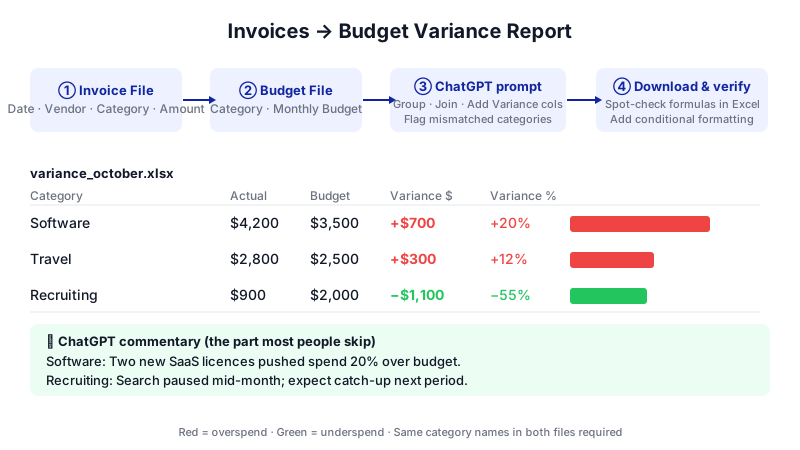
Watch the commentary callout appear last — that two-sentence explanation per category is the step most teams skip, and the one partners actually read. Make a simple budget file. Create a second file with two columns: Category and Monthly Budget. Use the exact same category names as in your invoice file. Spelling matters; "Software" and "Software & Tools" will be treated as two different lines.
Open a new ChatGPT chat and turn on Advanced Data Analysis. Upload both files (invoices and budget) using the attachment button. Remember that the session is ephemeral: uploaded files and any intermediate work are wiped when the session ends or after roughly 30 minutes of idle time, so plan to finish in one sitting and download results before closing the tab.
Ask ChatGPT to build the variance table. Paste a prompt like this:
You have two files:
invoices_october.xlsx(one row per invoice with Date, Vendor, Category, Amount) andbudget_2025.xlsx(Category and Monthly Budget). Group the invoices by Category and sum the Amount column to get Actuals for October. Join that against the budget on Category. Add two columns: Variance = Actual − Budget, and Variance % = (Actual − Budget) / Budget. Return the result as an Excel file calledvariance_october.xlsxwith the categories sorted by largest absolute variance first. Flag any invoice categories that don't exist in the budget, and any budget categories with zero actuals.The "flag what doesn't match" instruction matters. Mismatched category names are the number one reason variance reports look wrong on the first pass.
Download the file immediately. Click the download link ChatGPT provides and save
variance_october.xlsxlocally. The sandbox is temporary — if the session expires, the file is gone and you'll have to re-upload and re-run.Spot-check the math in Excel. Open the downloaded file. Pick two or three rows and verify: Variance should equal Actual minus Budget, and Variance % should equal that divided by Budget. In Excel the native formulas are simply
=Actual-Budgetand=(Actual-Budget)/Budget. If you prefer to rebuild the subtotals yourself from the raw invoices, use=SUMIF(InvoiceRange, "CategoryName", AmountRange).Add conditional formatting so variances pop. Select the Variance column, then go to Home → Conditional Formatting in the Ribbon. Add a rule that colours negative numbers (overspend) red and positive numbers (underspend) green, or use a colour scale. If you've put the data in a Pivot Table, when you set the rule choose the scope "All cells showing [Variance] values" so the formatting survives when filters or refreshes change the layout.
Now ask ChatGPT for the commentary. This is the step that saves you the most time. In the same chat, paste:
Here is the variance table you just produced. For each of the top 8 categories by absolute variance, write 2–3 sentences of plain-English commentary suitable for a leadership email. For each category, cover: (1) whether we were over or under budget and by how much in dollars and percent, (2) the most likely driver based on the invoice-level data (which vendors are involved, whether it looks like a one-off or a pattern), and (3) one suggested next step or question I should ask the vendor or the team. Avoid finance jargon. Do not speculate beyond what the invoice data supports; if you can't tell the driver, say so.
The constraint "don't speculate beyond the data" is important. Without it, ChatGPT will invent reasons that sound confident and plausible and are completely made up.
Paste the commentary back into the workbook. Add a Commentary column next to Variance %. Copy each category's two or three sentences into the matching row. Read every single one — this is a human-check step, not optional.
Write the top-line summary. Ask ChatGPT one more thing:
Based on the variance table and the commentary, write a 4–6 sentence executive summary for the top of the report. Lead with total actual vs. total budget, then the 2–3 biggest drivers of the variance, then one sentence on what to watch next month. Neutral tone, no adjectives like "significant" or "dramatic".
Paste this at the top of your workbook, or into the body of the email you send with the file attached.
Save your prompts. Keep the three prompts above in a Notes file or at the top of your budget template. Next month you'll just change the month name and upload the new invoice file.
A worked example
Say you run operations at a 30-person design studio. Your October invoices file has 142 rows across categories like Software, Contractors, Travel, Office, Marketing, and Client Hospitality. Your monthly budget is $84,000.
After step 4, ChatGPT returns a table that looks something like this:
| Category | Budget | Actual | Variance | Variance % |
|---|---|---|---|---|
| Contractors | $28,000 | $36,400 | +$8,400 | +30% |
| Travel | $6,000 | $1,250 | −$4,750 | −79% |
| Software | $9,000 | $10,200 | +$1,200 | +13% |
After step 8, the Contractors commentary might read: "Contractors came in $8,400 over budget (+30%). Three invoices from one vendor account for $7,100 of the overspend, and all three reference the same client project. This looks like a project-specific overrun rather than an ongoing increase. Suggest confirming with the project lead whether this is billable to the client."
That paragraph is the real deliverable. The numbers took a minute; the paragraph used to take you twenty.
Limits and gotchas
- No live connection. ChatGPT cannot read a live Excel file on OneDrive or a Google Sheet. Every month you manually upload a fresh export. If your invoice data changes after you upload, you have to re-upload.
- The sandbox is temporary. Advanced Data Analysis runs in an ephemeral container that resets after about 30 minutes of inactivity or when the session ends. Download your output file as soon as it's generated.
- File size. Keep uploads under about 50 MB for reliable execution, even though the technical cap is 512 MB.
- Category hygiene. If your invoice categories don't match your budget categories exactly, your variance will be wrong and misleading. That's why step 4 asks ChatGPT to flag mismatches.
- Commentary must be read. ChatGPT can misinterpret a one-off vendor or confuse two similar vendor names. Never forward the commentary without reading each line.
- Data sensitivity. Invoices contain vendor names, amounts, and sometimes client references. Check your firm's policy on uploading third-party financial data to ChatGPT. If you're unsure, anonymise vendor names before upload (
Vendor_A,Vendor_B) and map them back in Excel after. - Nothing auto-saves. The chat session and any analysis inside it do not persist as a reusable workspace. Your source of truth is the Excel file on your machine, not the ChatGPT conversation.
When not to use AI for this, and honest alternatives
If your firm has a bookkeeper or outsourced accountant who already produces a monthly P&L, don't duplicate their work. Ask them for the variance report first.
If your data is already clean and you just want faster formulas and charts inside Excel itself, Microsoft Copilot in Excel is a closer fit. It lives in the Excel ribbon and handles formula generation, insights, and data cleanup in place. Note it is a separate paid product and requires a Microsoft 365 Copilot subscription — it is not included with a standard Microsoft 365 plan.
If your variance analysis is driving real financial decisions (bank covenants, investor reporting, tax), get a qualified accountant to sign off. ChatGPT is a drafting assistant for this workflow; it is not an auditor.
And if you have more than a few hundred invoices a month, or you want the report to refresh automatically from your accounting system, you've outgrown this workflow. At that point a lightweight custom integration — pulling invoice data on a schedule and generating the report without manual uploads — is the next step. That's the kind of build CodeNicely puts together when a tool-stitched workflow hits its ceiling.
Frequently Asked Questions
Do I need ChatGPT Plus for this, or is Free enough?
Free is fine for a one-off because Advanced Data Analysis is available on the Free plan too. But Free is capped at 3 file uploads per day, and you'll usually upload at least two (invoices and budget), plus any corrections. For monthly use, Plus at US$20/month gives you up to 80 uploads every 3 hours, which removes the friction.
Can ChatGPT just read my accounting software directly?
No. ChatGPT's Advanced Data Analysis works only on files you upload — .xlsx, .xls, or .csv. It cannot connect to QuickBooks, Xero, or a live OneDrive or Google Sheets file. You export, you upload, you download the result.
Is it safe to upload invoice data?
Files you upload are processed in a temporary sandbox and deleted after the session ends. That said, check your firm's data-handling policy before uploading anything with client or vendor details. A simple option is to anonymise vendor names in Excel before uploading and swap the real names back in afterwards.
What if ChatGPT's numbers don't match mine?
Spot-check in Excel using =Actual-Budget and =SUMIF() on a few categories. The most common cause of a mismatch is category names that don't align exactly between your invoice file and your budget file — that's why the prompt in step 4 explicitly asks ChatGPT to flag mismatches.
How long does this take after the first time?
The first run takes about an hour because you're building the template, cleaning categories, and reading everything carefully. From month two, if your invoice export format stays the same, it is realistically 20–30 minutes: upload, run the two prompts, spot-check, paste commentary, send.
Sources & further reading
- ChatGPT Data Analysis Review 2026: AI for Excel, CSV & Spreadsheet Analysis – BuildFastWithAI
- ChatGPT for Excel & Data Analysis: Complete Guide (2026) – AI Toolbox
- How to Upload an Excel File to ChatGPT (and Its Limits) – LlamaPress
- ChatGPT Plus Upload Limit: File Sizes and Rolling Caps – Fast.io
- ChatGPT File Upload Limits 2026: Size, Count and Plans – AI Toolbox
- ChatGPT Data Analysis for Beginners: File Limits & Hidden Caps – QWE.edu.pl
- ChatGPT Advanced Data Analysis: File Upload Guide [2026] – QWE.edu.pl
- ChatGPT Advanced Data Analysis: What Actually Works – QWE.edu.pl
- ChatGPT Pricing November 2026 – GeoToolbox
- How Much Is ChatGPT Plus in 2026? – GLB GPT
Get one practical guide a week
Costs, AI tools, partner selection — written for people who make the decision. No spam, unsubscribe anytime.
Thanks — you're on the list. One practical guide a week, nothing else.
That didn't work — please check the email address and try again.
Building something in Finance & Accounting?
CodeNicely partners with founders and tech teams to ship AI-native products that move metrics. Tell us about the problem you're solving.
Talk to our team Book a 30-min call