
Turn Customer Complaints into Canned Replies with ChatGPT and Zendesk

 Published by CodeNicely, the product studio founded by Meghal Agrawal and Ujjwal Agrawal in 2017
For: A customer support manager at a 30-person e-commerce brand who handles a shared Zendesk inbox of 200+ tickets a week, has no developer on the team, and is tired of agents copy-pasting inconsistent replies from a messy Google Doc
In this guide
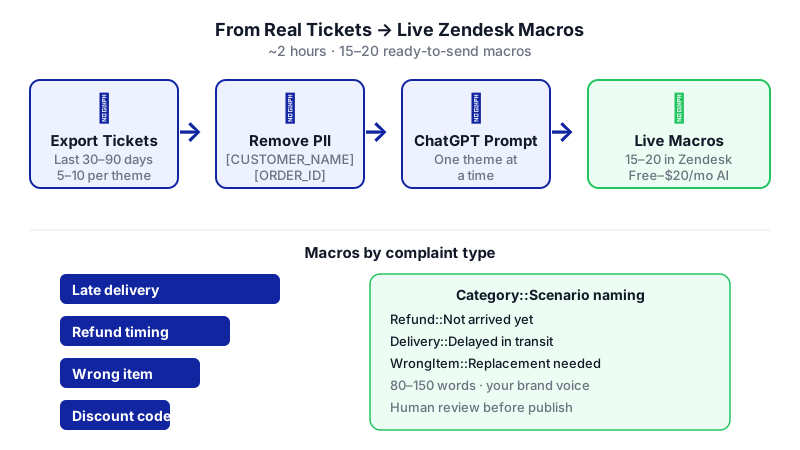
By the end of this tutorial you'll have 15–20 ready-to-send Zendesk macros, organised by complaint type and written in your brand's voice, built from your own real tickets instead of generic support-speak. Plan for about two hours start to finish, plus a short review pass with one teammate.
Last verified: November 2026, against the tools' own documentation. AI tools change often — if a step no longer matches, check the sources at the end.
Who this is for, and what you'll get
You're the support manager at a small e-commerce team. Your agents handle 200+ tickets a week in a shared Zendesk inbox, and the same complaints — late delivery, wrong item, refund timing, discount code failures — keep coming back. Right now agents either rewrite replies from scratch or paste from a shared doc that nobody's maintained since last quarter.
What you'll walk away with:
- A short list of your actual top complaint categories, pulled from real tickets.
- A tested ChatGPT prompt that turns clustered ticket text into a clean macro draft.
- 15–20 shared macros live inside Zendesk, grouped with a tidy naming convention, ready for every agent on day one.
The thing most tutorials miss: they tell you to write macros from scratch with ChatGPT. The real unlock is feeding ChatGPT your actual exported ticket text first, so the macros echo the exact language and edge cases your customers already use.
What you need
| Tool | Plan needed | Cost (verified) |
|---|---|---|
| Zendesk | Any paid Zendesk plan. Shared macros are available from the entry-level Support Team plan. | Support Team starts at $19/agent/month billed annually ($25/agent/month billed monthly). There is no permanent free plan. |
| ChatGPT | Free plan is enough for this workflow. Plus helps if you want to paste larger ticket batches. | Free: $0. Plus: $20/month. Business: $25/seat/month monthly or $20/seat/month billed annually (2+ users). Pro: from $100/month. |
| Zendesk admin access | You need to be an administrator (or an agent in a custom role with explicit macro permission) to create shared macros. Regular agents can only make personal ones. | Included in your plan. |
You do not need the Zendesk Copilot add-on for this tutorial. Copilot (which bundles AI-assisted writing inside the macro editor and the 'suggested macros' feature) is about $50/agent/month billed annually and requires at minimum Suite Professional or Support Professional. ChatGPT is a perfectly valid stand-in for the drafting part.
Step-by-step
- Pull your top complaint categories from the last 30–90 days. In Zendesk, open your existing Views or a report of solved tickets and skim subject lines and tags. Write down the 6–10 complaint themes that keep appearing: late delivery, wrong item shipped, item arrived damaged, refund hasn't landed, discount code didn't apply, cancellation request, exchange request, size/fit issue, missing order confirmation, and so on. You're building the spine of your macro library here, so don't skip this.
- Collect 5–10 real ticket examples per category. Open a few representative tickets for each theme and copy the customer's first message plus the best agent reply you've sent. Paste them into a plain text doc, grouped by theme. This is what makes the macros sound like your brand instead of a generic help centre. Keep roughly 1–2 pages per theme — anything much larger risks hitting ChatGPT Free's context window (around 27K tokens, roughly 12 pages total).
- Remove personal data before pasting into ChatGPT. Find-and-replace customer names, email addresses, order numbers, phone numbers and addresses with placeholders like
[CUSTOMER_NAME],[ORDER_ID],[EMAIL]. This protects your customers and keeps the macro ready to use with Zendesk's placeholder variables later. - Open ChatGPT and run this prompt, one complaint theme at a time. Working one theme at a time gives you tighter, more accurate output and keeps you well under any context limit.
You are a senior customer support copywriter for a small e-commerce brand. I will paste 5–10 real customer complaint messages and the agent replies we sent, all on one theme: [THEME, e.g., "refund hasn't landed yet"].
Your job:
1. Read the examples and identify the 2–3 most common sub-scenarios inside this theme.
2. For each sub-scenario, write ONE Zendesk macro reply, 80–150 words, in the same tone and vocabulary the agents already use.
3. Use these placeholders where appropriate: [CUSTOMER_NAME], [ORDER_ID], [AGENT_NAME], [ETA_DAYS].
4. Start each reply with a short empathy line that acknowledges the specific frustration, not a generic "sorry for the inconvenience".
5. End with one clear next step and an invitation to reply if that doesn't resolve it.
6. Do not invent policies. If a reply needs a policy detail I haven't given you, mark it in brackets like [CONFIRM: 14-day refund window].
Output format for each macro:
- Suggested macro title in the format Category::Specific Scenario
- Reply body
Here are the examples:
[PASTE YOUR CLEANED TICKETS HERE] - Review every draft with a human eye. Read each macro out loud. Fix anything that sounds off-brand, confirm any bracketed policy notes against your real policies, and shorten anything flabby. This is the step most people skip and regret.
- Create the macros in Zendesk. In Zendesk, go to Admin Center → Workspaces → Agent tools → Macros, then click Create macro. Paste the reply body into the comment/description field, set the macro to be available to all agents (not just you), and save. Repeat for each macro. Note: this is the current path — ignore older tutorials pointing to the legacy Admin panel.
- Use the double-colon trick to group them. Zendesk doesn't have a separate 'category' object. Instead, naming a macro
Shipping::Late Delivery – Domesticand anotherShipping::Late Delivery – Internationalautomatically nests them under a Shipping group in the macro picker. Apply this to every macro you create. Suggested top-level groups for an e-commerce brand: Shipping, Refunds, Exchanges, Product Issues, Discounts, Account. - Shortcut: build macros straight from a live ticket. When a new complaint type shows up, open the ticket, write the ideal reply once, then use the ticket's options menu and choose Create as macro. Zendesk pre-fills the reply body, so you only need to tidy the title and save. This is the fastest way to grow the library over time.
- Roll it out to your agents. Send a short message explaining the naming convention (
Category::Scenario), where to find the macros in the agent workspace, and the rule you want them to follow: use a macro if one fits, edit before sending if the customer's situation is unusual, and flag you if they find themselves rewriting the same thing twice — that's a candidate for a new macro. - Review the library monthly. Once a month, pull the 5 longest reply threads from the last 30 days and ask: should this have been a macro? Add new ones, deactivate stale ones, and keep the library tight. Aim to stay around 20–40 shared macros, not hundreds.
A worked example
Say your theme is "discount code didn't apply at checkout". You collect 7 real tickets. After cleaning, a typical one reads:
Hey, I tried to use code SPRING20 on my order but it says invalid. I saw it in your email yesterday. Order is [ORDER_ID]. Can you just refund the difference? Thanks, [CUSTOMER_NAME]
You paste all 7 into ChatGPT with the prompt above. A good output for one sub-scenario looks like:
Title: Discounts::Code Didn't Apply – Already Placed Order
Body: Hi [CUSTOMER_NAME], frustrating when a code doesn't go through at checkout — totally fair to ask. I've checked order [ORDER_ID] and I can see the SPRING20 discount wasn't applied. I've just refunded the difference back to your original payment method, and you should see it within [ETA_DAYS] business days depending on your bank. If the amount doesn't match what you expected, reply here and I'll take another look straight away. — [AGENT_NAME]
Notice what's good: specific empathy (not "sorry for the inconvenience"), a concrete action already taken, a realistic timeline, and a clear invitation to reply. That's the bar for every macro in the library.
Limits and gotchas
- No live integration. ChatGPT has no native connection to Zendesk. Every macro moves by copy-paste. If you want automation later, a third-party connector like Zapier or a custom build would be required.
- Admin permissions matter. Only admins (or custom roles with explicit permission) can create shared macros. If your test macro is only visible to you, that's why.
- Context window. ChatGPT Free handles roughly 27K tokens (about 12 pages). If you're pasting huge ticket dumps, work one theme at a time or upgrade to Plus (54K on instant, 256K on reasoning models).
- Privacy. Scrub names, emails, order numbers and addresses before pasting into ChatGPT. Treat it like any external tool.
- Macros are not policy. ChatGPT will cheerfully invent a refund window or a shipping SLA if you let it. The bracketed
[CONFIRM: …]step in the prompt catches most of this, but a human review is non-negotiable. - Deactivate before deleting. Deleted Zendesk macros cannot be recovered. Deactivate first, live without them for a week, then delete.
- Zendesk limits are generous. Shared macros are capped at 5,000 per account, with up to 5 attachments per macro comment and 50 MB per attachment. A 15–20 macro library is nowhere near any ceiling.
- 'Suggested macros' is a separate product. If you want Zendesk to automatically recommend the right macro to agents in real time, that requires the Copilot add-on and at least 100 tickets with shared macros applied plus at least 3 shared macros used in the past 9 months. New macros take about 2 weeks to enter the model.
When not to use AI for this
Skip the ChatGPT step and write the macro by hand when:
- The reply involves a legal, compliance, or safety matter (chargebacks, data requests, product recalls). Draft these yourself with the relevant owner.
- You only have one or two tickets on a theme. There isn't enough pattern for ChatGPT to learn from — just write it.
- The complaint is highly emotional or high-value (a wedding gift arriving broken, a large B2B order). These deserve a bespoke reply every time, not a macro.
Honest alternatives if this workflow isn't right for you: Zendesk's own Copilot add-on gives you AI-drafted replies and suggested macros inside the native interface, at roughly $50/agent/month on top of a Professional-tier plan. Or, if your library is small and stable, a well-maintained shared doc plus two hours of manual macro entry still works — this tutorial is mostly about getting to a good starting library fast.
Frequently Asked Questions
Do I need the Zendesk Copilot add-on to do this?
No. Copilot is useful if you want AI drafting inside the Zendesk macro editor itself, or 'suggested macros' recommending macros to agents in real time. For this workflow, ChatGPT handles the drafting outside Zendesk and you paste the finished text in. Any paid Zendesk plan with macro permissions is enough.
Is ChatGPT's free plan really enough?
Yes, for 15–20 macros built one theme at a time. The Free plan's context window (around 27K tokens, roughly 12 pages) comfortably fits 5–10 cleaned tickets per theme. If you plan to paste much larger ticket batches or do a lot of iteration, Plus at $20/month gives you a bigger window and generally snappier responses.
Can I let ChatGPT push macros straight into Zendesk?
Not directly. There is no native integration between the two. You can build a connector using Zapier or a custom API integration, but that's a separate project. For a one-off library build, manual copy-paste into the macro editor is faster than wiring up automation.
How many macros should I actually have?
For a 30-person e-commerce brand, aim for 20–40 shared macros total across all categories. Fewer than that and you'll be rewriting too much; many more and agents start scrolling past them and inventing replies anyway. Review monthly and prune ruthlessly.
What if agents keep editing the macros before sending?
That's fine — macros are a starting point, not a script. But if the same macro gets heavily rewritten over and over, that's a signal the macro itself is wrong. Pull those tickets, feed the new examples back into the ChatGPT prompt, and update the macro.
If your support workflow outgrows copy-paste between ChatGPT and Zendesk — for example, you want tickets auto-categorised and drafted replies pre-filled — a custom integration is an option, and it's the kind of build CodeNicely does.
Sources & further reading
- Creating macros for repetitive ticket responses and actions – Zendesk Help
- Creating macros from existing tickets – Zendesk Help
- Organizing and managing your macros – Zendesk Help
- Enhancing macro content using generative AI – Zendesk Help
- About Zendesk Copilot – Zendesk Help
- Getting started with AI features in the Zendesk Copilot add-on – Zendesk Help
- ChatGPT Pricing – OpenAI Official
- Zendesk macros: how to create, apply and use the API (2026) – letsengaige.com
- Zendesk Pricing 2026: Plans, AI Add-Ons, and Hidden Costs Explained – hiverhq.com
- ChatGPT Context Window by Plan: 27K to 400K Tokens – toolcolumn.com
Get one practical guide a week
Costs, AI tools, partner selection — written for people who make the decision. No spam, unsubscribe anytime.
Thanks — you're on the list. One practical guide a week, nothing else.
That didn't work — please check the email address and try again.
Building something in Customer Support?
CodeNicely partners with founders and tech teams to ship AI-native products that move metrics. Tell us about the problem you're solving.
Talk to our team Book a 30-min call