

Draft a Accounts Payable Aging Report with Copilot and Excel

 Published by CodeNicely, the product studio founded by Meghal Agrawal and Ujjwal Agrawal in 2017
For: An office manager or bookkeeper at a 15–40 person services business who owns AP but has no dedicated accounting software beyond Excel and spends two hours every month manually sorting and bucketing overdue invoices
In this guide
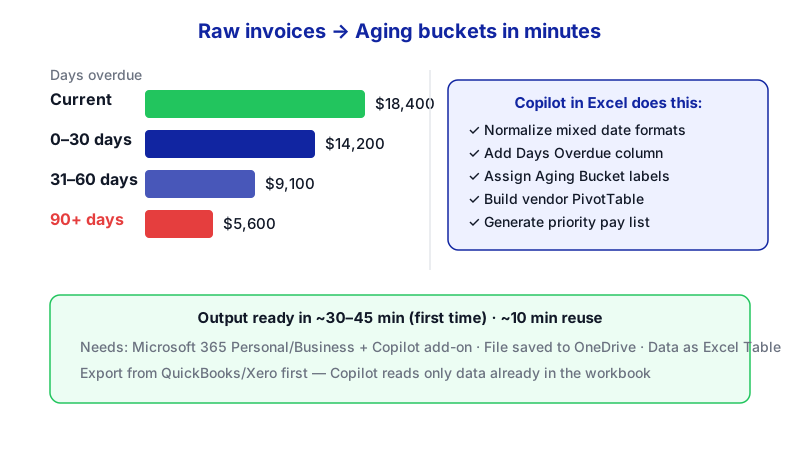
By the end of this tutorial you'll have a tidy accounts payable aging report — with 0–30, 31–60, 61–90, and 90+ day buckets, a per-vendor summary, and a short priority payment list — generated from your open invoice spreadsheet using Copilot in Excel. Budget around 30–45 minutes the first time, and closer to 10 minutes once you've reused the prompts.
Last verified: November 2026, against the tools' own documentation. AI tools change often — if a step no longer matches, check the sources at the end.
Who this is for, and what you'll get
You're the office manager or bookkeeper at a 15–40 person services business. You handle AP in Excel, your invoice list is messy (dates in mixed formats, vendor names inconsistent), and leadership wants a cash-flow view before the next meeting. You don't want to learn DATEDIF — you want the report.
What you'll have at the end:
- A clean Excel Table of open invoices with a consistent due date and a Days Overdue column.
- An Aging Bucket column (0–30, 31–60, 61–90, 90+).
- A PivotTable showing total outstanding by vendor and by bucket.
- A short priority payment list you can paste into an email or share with your accountant.
What you need
Copilot in Excel is a paid feature. It is not included in free Microsoft accounts or Microsoft 365 Basic. Pick the tier that matches how you work.

| Tool | Plan needed | Price (as published) |
|---|---|---|
| Excel (desktop or web) | Part of a Microsoft 365 subscription | Included with the plans below |
| Copilot in Excel — individual | Microsoft 365 Personal, Family, or Premium | $9.99/mo (Personal), $12.99/mo (Family), $19.99/mo (Premium) |
| Copilot in Excel — business | Microsoft 365 Copilot Business add-on | $21/user/month ($18 promo through 12/31/2026) |
| Copilot in Excel — enterprise | Microsoft 365 Copilot enterprise add-on | $30/user/month, billed annually |
| OneDrive or SharePoint | For AutoSave (required for Copilot to write back) | Included with the plans above |
You'll also need your current open AP data in a spreadsheet. Copilot in Excel only works on data that's already in the workbook — it has no connector to QuickBooks, Xero, SAP, or any ERP. You export the data yourself first, then Copilot takes it from there.
Step-by-step
-
Export your open invoices to Excel. From whatever you track AP in today (another spreadsheet, a PDF statement, or your bank portal), get the open invoices into a single sheet. Aim for one row per invoice with columns like
Vendor,Invoice Number,Invoice Date,Due Date,Amount, and optionalNotes. Don't worry yet about inconsistent date formats — Copilot can handle a fair amount of mess, but the cleaner the input, the better the output. -
Save the file to OneDrive or SharePoint and turn on AutoSave. Copilot in Excel can only write changes back to the workbook if the file lives in OneDrive or Microsoft 365 SharePoint and AutoSave is on. Save as
.xlsx,.xlsb, or.xlsm— legacy.xlsand Strict Open XML aren't supported. -
Format your data as an Excel Table. Click anywhere in your data and press Ctrl+T (or go to Insert → Table). Confirm the range and tick "My table has headers." Copilot in Excel will refuse to work on unformatted ranges — you'll see an "I can only work with Excel Tables" message if you skip this. Give the table a clear name like
APOpenfrom the Table Design tab so your prompts can refer to it. -
Open Copilot in Excel. Click the Copilot icon in the lower-right corner of Excel, or the Copilot button on the Home tab. You'll see three modes: edit (default, makes changes directly), plan (shows you a plan to approve before acting), and chat (answers questions without editing). For this job, start in plan mode so you can review before anything is written to your sheet.
-
Ask Copilot to normalize your dates. If your
Due Datecolumn has a mix of formats (e.g.,10/3/25,2025-10-03,3-Oct-25), get them into a single real-date format first. Paste something like:In the APOpen table, standardize the Due Date column so every value is a real Excel date in MM/DD/YYYY format. Flag any rows where the Due Date can't be parsed in a new column called "Date Issue".
Review the plan Copilot shows you, then approve it. Scroll through the sheet and spot-check a few rows against your original data.
-
Ask Copilot to add Days Overdue and Aging Bucket columns. This is the step most tutorials make you do by hand with DATEDIF. You don't need to. Use:
In the APOpen table, add a column called "Days Overdue" that equals TODAY() minus Due Date (zero if not yet due). Then add a column called "Aging Bucket" with the values "Current", "0–30", "31–60", "61–90", or "90+" based on Days Overdue. Explain the formulas you used.
Copilot will write the formulas into the table and describe them in the chat panel. Read the explanation — if the bucket boundaries aren't what you want (for example, you consider day 30 as "0–30" not "31–60"), ask it to adjust.
-
Ask Copilot to build the vendor summary PivotTable. Prompt:
Create a PivotTable on a new sheet called "Vendor Aging" summarizing the APOpen table. Rows: Vendor. Columns: Aging Bucket (ordered Current, 0–30, 31–60, 61–90, 90+). Values: sum of Amount. Add a grand total row and column.
When it finishes, check that the bucket column order is correct — PivotTables sometimes alphabetize labels. If it did, ask Copilot to sort the columns in that specific order.
-
Add conditional formatting so overdue rows stand out. On your main invoice sheet, prompt:
On the APOpen table, apply conditional formatting to the Aging Bucket column: Current = green, 0–30 = yellow, 31–60 = orange, 61–90 = red, 90+ = dark red with white text.
-
Generate a priority payment list. Switch Copilot to chat mode so it doesn't edit the sheet, and ask:
From the APOpen table, list the top 10 invoices to prioritize paying this week. Prioritize by highest Days Overdue, then largest Amount. Show Vendor, Invoice Number, Due Date, Days Overdue, and Amount. Format as a table I can paste into an email.
Copy the response into your draft email or paste it into a new sheet called "Priority Payments".
-
Verify the totals manually. Before you share anything, do two quick checks: (a) sum the
Amountcolumn on the main table and confirm it matches the grand total on the Vendor Aging PivotTable, and (b) spot-check three or four aging buckets against the actual due dates. Microsoft's own documentation says Copilot outputs "can be inaccurate." Trust but verify.
A worked example
Say you're Priya, the office manager at a 28-person marketing agency. You have a spreadsheet called AP_October.xlsx with 142 rows of open invoices: freelancers, SaaS subscriptions, your landlord, printer leasing, two ad platforms. Due dates come from three sources, so you've got a mess of 10/15/2025, 15-Oct-25, and 2025-10-15 in the same column.

You save it to OneDrive, press Ctrl+T to make the table, name it APOpen, and run the prompts above. Copilot normalizes 139 of the 142 dates and flags three freelancer invoices where the date was typed as "Net 30" — you fix those by hand. It then adds Days Overdue and Aging Bucket, and builds the PivotTable.
Your output looks something like:
- Current: $42,310 across 61 invoices
- 0–30 overdue: $18,440 (mostly two ad platforms)
- 31–60 overdue: $6,120 (three freelancers)
- 61–90 overdue: $1,980 (one freelancer, one software renewal)
- 90+ overdue: $740 (one disputed invoice)
Your priority list surfaces the 90+ disputed invoice first (worth escalating before it becomes a relationship issue) and the two ad platforms (worth paying this week to avoid an account pause). Total time: about 25 minutes, most of it spent on the manual verification pass.
Limits and gotchas
- No live data. Copilot in Excel can't pull from QuickBooks, Xero, SAP, or any ERP. You export AP data first; it processes what's in the workbook.
- Table requirement. If you forget Ctrl+T, you'll get "I can only work with Excel Tables." Format first, prompt second.
- AutoSave and file location. If the file is on your desktop instead of OneDrive/SharePoint, or AutoSave is off, Copilot won't write changes back in the Excel desktop app. Save to the cloud first.
- File type. Use
.xlsx,.xlsb, or.xlsm. Old.xlsand Strict Open XML files aren't supported. - Table size. Copilot supports up to 2 million cells per table, and large tables can take over 30 seconds to respond. For normal AP data you'll be nowhere near this.
- Accuracy. Microsoft warns that Copilot outputs "can be inaccurate." Always reconcile the PivotTable grand total against a plain SUM of your Amount column before sharing.
- Sensitivity labels. If your IT team has applied a "Confidential" or "Highly Confidential" sensitivity label to the file, the
=COPILOT()worksheet function is blocked. The chat and edit features generally still work, but check with IT if something behaves oddly. - Language. Copilot in Excel supports 30+ languages but was trained mostly on English. If your vendor names and notes are in another language, you may get better results prompting in English and keeping the data as-is.
- Mobile. On iPhone and Android, only chat mode is available — you can't make edits from your phone. Use the desktop or web app for building the report.
When not to use AI for this, and honest alternatives
Skip Copilot and use a different approach if any of these apply:
- You already have accounting software. QuickBooks, Xero, Zoho Books, and FreshBooks all produce an AP aging report natively in a few clicks. Use that — it's tied to your live ledger and doesn't need a verification pass.
- You need this every week with the same structure. Build a reusable Excel Table with a hard-coded DATEDIF or IF formula once, and you won't need prompts at all. Copilot shines when your data is messy or the structure keeps changing.
- Your data contains payment info you can't send to a cloud model. If your company policy forbids processing AP data through AI services, stick with native Excel formulas. Check with your IT/security lead before using Copilot on labelled files.
- You need auditable, deterministic output. For reports going to an auditor, hand-built formulas with a clear trail beat AI-generated ones. Use Copilot to draft, then rewrite the formulas yourself so you can defend every cell.
Frequently Asked Questions
Can Copilot pull my open invoices straight from QuickBooks or Xero?
No. Copilot in Excel only works on data that is already in the workbook, and it has no native connector to accounting systems. You export the open invoice list from your accounting tool (or compile it manually) into Excel first, then let Copilot do the categorizing and summarizing.
I have a free Microsoft account. Can I still do this?
Not with Copilot in Excel — it isn't available on free Microsoft accounts or Microsoft 365 Basic. The lowest consumer tier that includes it is Microsoft 365 Personal at $9.99/month. For business use you'll need the Microsoft 365 Copilot add-on on top of your existing Microsoft 365 plan.
Why does Copilot keep saying it can only work with Excel Tables?
Your data is still a plain range. Click anywhere in it, press Ctrl+T, confirm headers, and give the table a name from the Table Design tab. Copilot will then be able to read and modify it.
How much should I trust the numbers Copilot produces?
Treat them as a draft. Microsoft's own documentation says Copilot's content "can be inaccurate or inappropriate." Always reconcile the aging totals against a plain SUM of your Amount column, and spot-check a handful of rows before sharing the report with leadership or your accountant.
Can I run this from my phone before a meeting?
Partially. On iPhone and Android, Copilot in Excel only offers chat mode — you can ask questions about the data but you can't make edits. Build the report on desktop or Excel for the Web, then use your phone to query it on the way to the meeting.
If this monthly process grows into something more — say, pulling live AP data from multiple systems, routing approvals, and emailing vendors automatically — that's the point where an off-the-shelf tool stops being enough and a small custom build (which CodeNicely does) starts to pay back quickly.
Sources & further reading
- Get started with Copilot in Excel – Microsoft Support
- Frequently asked questions about Copilot in Excel – Microsoft Support
- Visualize your data with Copilot in Excel – Microsoft Support
- Get data insights with Copilot in Excel – Microsoft Support
- Copilot in Excel – Microsoft Adoption
- Meet Microsoft 365 Premium – Microsoft Blog
- Microsoft Excel product page (Copilot plan comparison) – Microsoft
- Is Copilot in Excel Free? Key Facts About Plans & Pricing – MyExcelOnline
- Is Copilot Included in Office 365? Plans, Pricing, and Features – MyExcelOnline
- Copilot 365 Not Writing into Excel – Microsoft Q&A
Get one practical guide a week
Costs, AI tools, partner selection — written for people who make the decision. No spam, unsubscribe anytime.
Thanks — you're on the list. One practical guide a week, nothing else.
That didn't work — please check the email address and try again.
Building something in Finance & Accounting?
CodeNicely partners with founders and tech teams to ship AI-native products that move metrics. Tell us about the problem you're solving.
Talk to our team Book a 30-min call